

Last Updated: June 15, 2026
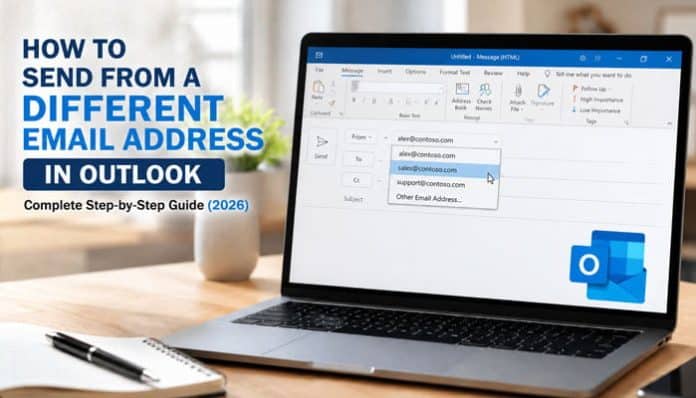
Learning how to send from a different email address in outlook allows you to manage personal accounts, business identities, aliases, shared inboxes, and delegated mailboxes without repeatedly signing in and out.
The basic process appears simple: open a message, display the From field, and select another address. However, Outlook only allows successful sending when the address is connected to your account, configured as an alias, or supported by the appropriate Microsoft 365 permissions.
A separate email account, Outlook.com alias, Microsoft 365 business alias, shared mailbox, delegate mailbox, Microsoft 365 Group, and distribution group may all appear in the From field. They are not interchangeable. Each uses a different setup method and can produce different results for recipients, replies, signatures, and Sent Items.
This complete guide explains how to send from another email address in new Outlook, classic Outlook, Outlook on the web, Outlook.com, Outlook for Mac, and the Outlook mobile app. It also covers aliases, shared mailboxes, Send As permissions, Send on Behalf permissions, default accounts, display names, message headers, deliverability, security, and troubleshooting.
To send from a different email address in Outlook:
- Open Outlook and select New Mail or New Email.
- Display the From field if it is hidden.
- Select the current sender address.
- Choose another account, alias, shared mailbox, or authorized address.
- Select Other email address if the sender is not listed.
- Enter or select the address you are permitted to use.
- Compose the message.
- Confirm the From address, recipients, signature, and attachments.
- Select Send.
If Outlook rejects the message, the address may not be configured correctly, or you may not have permission to send from it.
Key Takeaways
- The sender address must be connected or authorized.
- Enable the From field to choose another address.
- Typing an address does not grant sending permission.
- Shared mailboxes require Send As or Send on Behalf access.
- Outlook may use the receiving account for replies.
- Aliases share an existing mailbox; separate accounts do not.
- Plus addresses are for receiving, not sending.
- Always test a new sender configuration before regular use.
Outlook Sending Methods Comparison
| Method | Separate Inbox | Can Send Email | Best For |
|---|---|---|---|
| Alias | No | Yes | Multiple identities |
| Shared Mailbox | Yes | Yes | Team communication |
| Delegate Mailbox | Yes | Yes | Executive assistants |
| Microsoft 365 Group | Shared | Yes | Group collaboration |
| Separate Account | Yes | Yes | Independent mailbox |
Choosing the correct method helps prevent permission errors and delivery problems.
How to Send From a Different Email Address in Outlook
To send from a different email address in Outlook, create a new email, enable the From field, select another connected account, alias, shared mailbox, or authorized sender address, compose your message, and click Send.
If the address does not appear in the From list or Outlook shows a permission error, verify that the mailbox, alias, or delegation permissions have been configured correctly.
What Does Sending From a Different Address Mean?
The From field identifies the apparent sender of an outgoing email.
For example, your primary Outlook account may be:
However, you may need to send from:
- sales@contoso.com
- support@contoso.com
- alex.personal@outlook.com
- billing@anothercompany.com
- An Outlook.com alias
- A Microsoft 365 business alias
- A manager’s delegated mailbox
- A Microsoft 365 Group
- A distribution group
The method you should use depends on what the second address represents.
A separate account must normally be added and authenticated. An alias must belong to the underlying account. A shared mailbox requires access and sending permission. A group or distribution address requires administrator-assigned authorization.
Types of Sender Addresses Outlook Can Use
| Sender Type | What It Means | Requirement |
|---|---|---|
| Additional account | A separate email mailbox | Add and authenticate it |
| Outlook.com or Microsoft 365 alias | Another address linked to one mailbox | Configure and verify the alias |
| Shared mailbox | A team or department inbox | Full Access plus sending permission |
| Delegate mailbox | Another person’s mailbox | Delegate authorization |
| Microsoft 365 or distribution group | A group email address | Send As or Send on Behalf permission |
| Reply-To address | A different inbox for replies | Configure Reply-To |
| Display name | The name shown to recipients | Account or administrator access |
How to Choose the Correct Outlook Sending Method
Before learning How to Send From a Different Email Address in Outlook, identify the type of address you want to use.
| Address Type | Correct Method | Requirement |
|---|---|---|
| Separate email account | Add it to Outlook | Login credentials |
| Outlook or Microsoft 365 alias | Select it from the From field | Verified and enabled alias |
| Shared or department mailbox | Use a shared mailbox | Full Access and sending permission |
| Another person’s mailbox | Use delegate access | Owner or administrator approval |
| Microsoft 365 or distribution group | Send as or on behalf of the group | Group sending permission |
| Different reply address | Configure Reply-To | Access to the reply inbox |
| Different sender name | Change the display name | Account or administrator access |
Choosing the correct method helps prevent permission errors, failed delivery, and unexpected “on behalf of” labels.
Outlook Sending Methods at a Glance
| Method | Separate Inbox | Separate Password | Can Send Email | Best For |
|---|---|---|---|---|
| Alias | No | No | Yes, when supported | Multiple identities using one mailbox |
| Shared mailbox | Yes | No | Yes, with Send As or Send on Behalf permission | Team and department communication |
| Delegate mailbox | Yes | No | Yes, with delegated permission | Assistants and authorized representatives |
| Microsoft 365 Group | Shared conversations | No | Yes, with group sending permission | Group collaboration and announcements |
| Separate account | Yes | Yes | Yes, after the account is added and authenticated | A fully independent mailbox |
This comparison helps you quickly identify whether you need an alias, shared mailbox, delegated mailbox, Microsoft 365 Group, or completely separate account.
Before You Begin
Before changing the sender address:
- Confirm the address is correct and active.
- Identify whether it is an account, alias, shared mailbox, or group.
- Make sure the account is added to Outlook.
- Verify Send As or Send on Behalf permission if required.
- Update and restart Outlook after recent changes.
- Allow time for permissions to synchronize.
- Send a test email before regular use.
Entering an address manually does not automatically authorize you to send from it.
How to Show the From Field in Outlook
The From field may be hidden until you enable it.
New Outlook, Outlook.com, or Outlook on the Web
- Select New Mail.
- Open Options.
- Choose Show From.
- Select the displayed address to choose another sender.
Classic Outlook
- Select New Email.
- Open the Options tab.
- Select From under Show Fields.
Outlook usually keeps the From field visible after it has been enabled.
How to Send From a Different Email Address in New Outlook
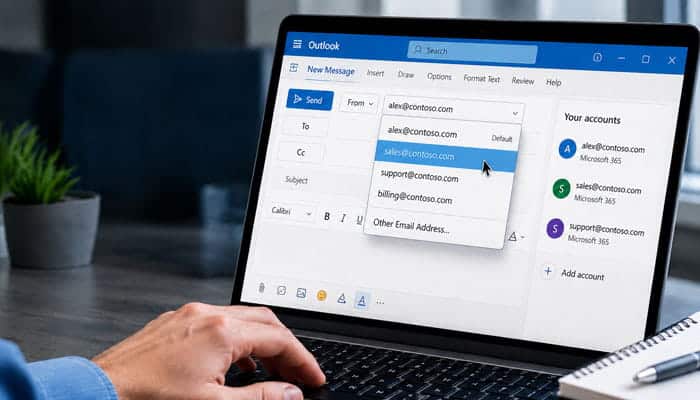
Add a Separate Account
Use this method when the address has its own mailbox and password:
- Open Settings > Accounts > Email accounts.
- Select Add account.
- Enter the email address and complete sign-in.
- Approve authentication and allow Outlook to synchronize.
Choose the Sender
- Select New Mail.
- Show the From field if needed.
- Select the current sender and choose another added account.
- Verify the address before sending.
Use an Alias or Shared Mailbox
- Select New Mail > Options > Show From.
- Open the From menu and choose Other email address.
- Enter the authorized alias, shared mailbox, group, or delegate address.
- Compose and send the message.
Typing an address manually does not grant permission to use it.
How to Send From a Different Email Address in Classic Outlook
To learn How to Send From a Different Email Address in Outlook using the classic desktop version, follow the method that matches your setup.
Switch Between Added Accounts
- Select New Email.
- Enable Options > From if the field is hidden.
- Open the From menu and choose another account.
- Confirm the sender and select Send.
Add Another Account
- Go to File > Add Account.
- Enter the email address and select Connect.
- Complete the password and authentication steps.
- Restart Outlook if required.
Some providers may require an app password or manual IMAP and SMTP settings.
Use an Alias or Authorized Mailbox
- Select New Email > Options > From.
- Choose Other Email Address.
- Enter or search for the authorized alias, shared mailbox, user, or group.
- Compose the message and verify the sender before sending.
Outlook may save a successfully used address in the From list for future emails.
How to Send From Another Address in Outlook on the Web
Outlook on the web is commonly used with Microsoft 365 work and school accounts.
- Sign in to your organization’s Outlook account.
- Select New Mail.
- Open Options.
- Choose Show From.
- Select the current From address.
- Choose an available sender.
- Select Other email address if the address is missing.
- Enter the mailbox, alias, user, or group address.
- Select the correct directory result.
- Write the message.
- Verify the sender.
- Select Send.
Outlook may remember a successfully used authorized address for future messages.
How to Send From a Different Address in Outlook.com
Outlook.com lets you send from an alias connected to your Microsoft account.
Send From an Alias
- Select New Mail.
- Choose Options > Show From.
- Open the From menu and select your alias.
- If it is missing, choose Other email address and enter it.
- Confirm the sender and select Send.
Messages sent from an alias normally remain in the same Sent Items folder.
Add an Outlook.com Alias
- Open your Microsoft account settings.
- Find the account alias or sign-in options.
- Add a new Outlook.com address or an eligible existing address.
- Complete verification.
- Return to Outlook.com and check the From menu.
An alias shares the same inbox, password, contacts, and storage as the primary account.
Change the Default Sender
The primary alias usually becomes the default Outlook.com sender. Changing it may also affect sign-in, account recovery, and other Microsoft services, so review the impact before removing an old alias.
Plus Addressing Is Not the Same as an Alias
A plus address adds a tag after the username.
Example:
The tag can help you identify where an address was used or organize incoming messages. However, a plus address is not a configured alias and cannot be used as an outgoing From address.
| Feature | Configured Alias | Plus Address |
|---|---|---|
| Can receive messages | Yes | Yes |
| Appears in the alias list | Yes | No |
| Can sometimes be used for sign-in | Yes | No |
| Can be selected as an outgoing sender | Yes, when supported | No |
| Creates a separate inbox | No | No |
| Can help organize incoming mail | Yes | Yes |
Create a proper alias when you need to send from the alternate identity.
How to Add and Send From a Separate Email Account
A separate account has its own mailbox, credentials, storage, folders, and email-provider configuration.
Examples include:
- Another Outlook.com account
- A Microsoft 365 work account
- Gmail
- Yahoo Mail
- iCloud Mail
- A custom-domain business mailbox
- An IMAP account
Add the account directly to Outlook rather than typing its address into the From line.
Why Proper Account Setup Matters
When the account is added correctly, Outlook can:
- Authenticate with the provider
- Use the correct outgoing server
- Synchronize the mailbox
- Save messages to the proper Sent folder
- Apply account-specific signatures
- Display the correct sender
- Receive replies in the correct inbox
Typing an unrelated address into the From field may produce rejection, an incorrect sender identity, or failed email authentication.
Email Alias vs Separate Email Account
| Feature | Email Alias | Separate Email Account |
|---|---|---|
| Separate password | No | Usually yes |
| Separate inbox | No | Yes |
| Separate mailbox storage | No | Yes |
| Separate calendar | No | Usually yes |
| Receives messages | Yes | Yes |
| Can send messages | Depends on configuration | Yes after setup |
| Independent recovery options | No | Yes |
| Best use | Several identities for one mailbox | Completely independent identity |
Use a separate account when independent folders, storage, credentials, security, or calendar access are required. Use an alias when several addresses should lead to the same mailbox.
How to Send From a Microsoft 365 Business Alias
A Microsoft 365 business alias is a secondary email address attached to an existing work or school mailbox.
For example, a user’s primary address may be:
The same mailbox may also receive messages sent to:
Receiving email at an alias does not always mean that outbound alias sending is available. An Exchange administrator may need to enable the organization’s alias-sending setting.
Send From the Business Alias
After the alias is assigned and outbound sending is supported:
- Open a supported Outlook application.
- Select New Mail.
- Display the From field.
- Select Other email address.
- Enter the business alias.
- Select the correct address.
- Write the message.
- Send it to an external test account.
- Check the visible sender and message headers.
Business Alias Limitations
- The alias normally shares the primary mailbox.
- It does not have an independent password.
- Sent messages may be stored under the primary mailbox.
- Replies may not automatically select the original alias.
- The alias may not immediately appear in every Outlook application.
- Organization policy may restrict outbound alias use.
- Directory changes may require time to synchronize.
How to Send From a Shared Mailbox
A shared mailbox is intended for an address managed by multiple authorized users.
Common examples include:
- info@company.com
- sales@company.com
- support@company.com
- billing@company.com
- careers@company.com
- orders@company.com
A shared mailbox allows a team to read and respond to email without sharing one password.
Shared-Mailbox Permissions Explained
Mailbox access and sending rights are separate permissions.
| Permission | What It Allows |
|---|---|
| Full Access | Open the mailbox and manage its contents |
| Send As | Send messages that appear to come directly from the mailbox |
| Send on Behalf | Send messages identified as coming from you on behalf of the mailbox |
Full Access alone does not provide permission to send.
A user may be able to open support@company.com and read its messages but still receive an error when trying to send from that address.
Send As vs Send on Behalf
Send As
With Send As permission, the recipient normally sees:
From: support@contoso.com
There is no normal indication in the From line that an individual employee sent the message.
Send on Behalf
With Send on Behalf permission, the recipient may see:
Taylor on behalf of Support Team
Replies are normally directed to the mailbox or group rather than the delegate.
Which Permission Should a Business Use?
| Situation | Recommended Permission |
|---|---|
| Customer-support team using one brand identity | Send As |
| Executive assistant sending for a manager | Send on Behalf |
| Finance team using billing@company.com | Send As |
| Employee managing another person’s communication | Send on Behalf |
| Recruitment team using careers@company.com | Send As |
| Communication requiring delegate transparency | Send on Behalf |
If a user has both permissions for the same mailbox or group, Exchange generally uses Send As.
Add a Shared Mailbox in New Outlook
After an administrator grants access:
- Close and reopen new Outlook.
- Check whether the mailbox appears automatically in the Folder pane.
- If it is missing, right-click your account name.
- Select Add shared folder or mailbox.
- Enter the shared mailbox name or address.
- Select the correct mailbox.
- Allow its folders to load.
Recently assigned access may take time to appear.
Send From the Shared Mailbox
- Select New Mail.
- Display the From field.
- Select the current sender.
- Choose the shared mailbox.
- Select Other email address if it is not listed.
- Enter the shared address.
- Complete the message.
- Verify the sender.
- Select Send.
After the first successful use, the mailbox should remain available in the From dropdown.
Add a Shared Mailbox as an Account in New Outlook
New Outlook can display a shared mailbox as a shared folder or, when the feature is available, as an account.
Adding it as an account provides access to supported mailbox-specific settings such as:
- Notifications
- Categories
- Inbox rules
- Automatic replies
- Unread counts
- Account-level settings
You must have Full Access permission to add the shared mailbox as an account.
Convert an Automatically Added Mailbox
- Open new Outlook.
- Select File > Account info, or open Settings.
- Select Accounts.
- Open Shared with me.
- Find and expand the shared mailbox.
- Select Convert.
- Check Your accounts to confirm that it was added.
Promote a Mailbox Previously Added as a Folder
- Open Settings > Accounts > Shared with me.
- Expand the existing mailbox.
- Select Promote or the available conversion option.
- Confirm that the mailbox appears under Your accounts.
Add a Mailbox That Is Not Listed
- Open Settings > Accounts > Shared with me.
- Select Add.
- Search for the shared mailbox.
- Follow the prompts.
- Confirm that it appears under Your accounts.
The feature may not yet be available in every new Outlook installation because Microsoft can release capabilities gradually.
Add a Shared Mailbox in Classic Outlook
Shared mailboxes are often added automatically after Full Access is granted.
If it does not appear:
- Select File.
- Select Account Settings
- Select your Microsoft 365 or Exchange account.
- Choose Change.
- Open More Settings.
- Select the Advanced tab.
- Choose Add.
- Enter the shared mailbox name.
- Select OK.
- Complete the setup.
- Restart Outlook.
Send From It in Classic Outlook
- Select New Email.
- Choose Options > From.
- Open the From menu.
- Select the shared mailbox.
- If it is missing, choose Other Email Address.
- Search the directory for the mailbox.
- Select the correct result.
- Compose the message.
- Verify the sender.
- Select Send.
Use a Shared Mailbox in Outlook on the Web
Add It to the Folder List
- Sign in to Outlook on the web.
- Right-click Folders or your primary mailbox name.
- Select Add shared folder or mailbox.
- Enter the shared mailbox address.
- Select the correct result.
- Expand the mailbox in the folder list.
Send From the Shared Address
- Select New Mail.
- Open the More actions or Options menu.
- Select Show From.
- Select the current From address.
- Enter or select the shared mailbox.
- Compose the message.
- Confirm the sender.
- Select Send.
Open the Shared Mailbox in a Separate Window
Opening it separately may provide a clearer mailbox-specific experience and notifications.
- Sign in to Outlook on the web.
- Select your profile or account name.
- Choose Open another mailbox.
- Enter the shared mailbox address.
- Select Open.
A separate Outlook session should open for that mailbox.
How to Add and Use a Shared Mailbox in Outlook Mobile
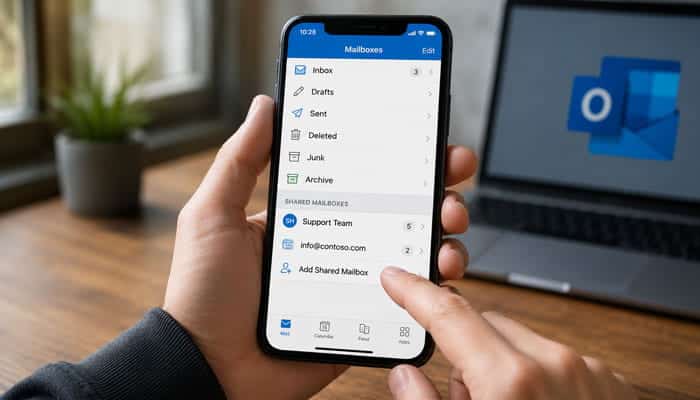
Outlook for iPhone and Android supports eligible shared mailboxes when both the primary and shared mailboxes are hosted in Exchange Online and use Microsoft’s supported synchronization technology.
Add a Shared Mailbox on iPhone or Android
- Open the Outlook mobile app.
- Sign in to the Microsoft 365 account that has mailbox access.
- Tap the account or profile icon.
- Select Add Account.
- Choose Add a Shared Mailbox.
- If several accounts are connected, select the account with permission.
- Enter the shared mailbox address.
- Select the correct mailbox.
- Wait for it to appear in the account list.
Send From the Shared Mailbox
- Open the shared mailbox in the account list.
- Tap the compose button.
- Confirm that the shared address is selected.
- Add the recipients and subject.
- Write the message.
- Verify the sender.
- Tap Send.
If it does not appear, confirm that:
- Full Access has been assigned.
- The shared mailbox is hosted in Exchange Online.
- The primary account is also eligible.
- Outlook mobile is updated.
- You selected the correct primary account.
Where Shared-Mailbox Sent Messages Are Stored
A message sent through delegated access may be stored in the individual sender’s Sent Items folder instead of the shared mailbox’s Sent Items folder.
An Exchange administrator can configure copies to be saved in the mailbox from which the message was sent.
Possible outcomes include:
- The message is saved only in the user’s Sent Items.
- It is saved in both the user’s and shared mailbox’s Sent Items.
- It follows another organization-specific configuration.
Businesses should review this setting so team members can see previous customer responses.
How to Send on Behalf of Another Person
You cannot normally send on behalf of another user without permission.
After the mailbox owner or administrator assigns delegate access:
- Restart Outlook.
- Select New Mail or New Email.
- Display the From field.
- Select Other email address.
- Enter the person’s name or address.
- Select the correct directory entry.
- Compose the message.
- Confirm the selected mailbox.
- Select Send.
The recipient may see your name followed by “on behalf of” the mailbox owner.
How to Send From a Microsoft 365 Group
A Microsoft 365 Group is different from a shared mailbox. It may include:
- A group email address
- Shared conversations
- A calendar
- Shared files
- Microsoft 365 collaboration services
- Membership controls
Group membership does not automatically provide permission to send from the group address.
An administrator can assign:
- Send As which makes the message appear to come directly from the group
- Send on Behalf which identifies the individual sending for the group
Send From the Group Address
- Open Outlook.
- Select New Mail or New Email.
- Display the From field.
- Select the current sender.
- Choose Other email address.
- Enter the Microsoft 365 Group address.
- Select the matching directory entry.
- Compose the message.
- Confirm the From address.
- Send a test message.
If the message is rejected, you may be a group member without a sending permission.
Can You Send From a Distribution Group?
A distribution group is mainly designed to deliver one message to multiple members. It is not automatically a mailbox that users can open and manage.
An Exchange administrator can authorize users to send as or on behalf of eligible distribution groups.
Shared Mailbox vs Distribution Group
| Feature | Shared Mailbox | Distribution Group |
|---|---|---|
| Has a central inbox | Yes | Generally no |
| Stores received messages | Yes | No central storage by default |
| Supports shared message history | Yes | Limited |
| Delivers messages to members | Through shared access | Through distribution |
| Has shared Sent Items | Can be configured | No mailbox-style Sent Items |
| Can send from its address | With permission | With permission |
| Best for team replies | Yes | Usually no |
| Best for announcements | Sometimes | Yes |
Use a shared mailbox when a team must receive, organize, answer, and retain conversations. Use a distribution group when messages primarily need to be delivered to several recipients.
How to Send From Another Account in Outlook for Mac
Add the Account
- Open Outlook for Mac.
- Select Outlook in the menu bar.
- Choose Settings.
- Open Accounts.
- Select Add Account.
- Enter the email address.
- Select Continue.
- Complete authentication.
- Approve security prompts.
- Select Done.
Choose a Different Sender
- Select New Message.
- Locate the From field.
- Select the displayed sender.
- Choose another configured account.
- Compose the message.
- Verify the address.
- Select Send.
Alias, shared-mailbox, and delegate support may vary according to the mailbox type, Outlook version, and organization settings.
How to Switch Between Regular Accounts in Outlook Mobile
Add Another Account
- Open Outlook for iPhone or Android.
- Tap the profile icon.
- Open Settings.
- Select Add Email Account.
- Enter the address.
- Complete authentication.
- Approve multi-factor authentication if required.
Select the Sender
- Tap the compose button.
- Tap the current account or sender.
- Choose another connected account.
- Write the message.
- Confirm the sender.
- Tap Send.
The exact controls may differ between iPhone, Android, and Outlook app versions.
How to Set a Default Sending Account
When several accounts are configured, Outlook normally selects a default account for new messages.
Set the Default Account in Classic Outlook
- Select File.
- Choose Account Settings.
- Select Account Settings again.
- Open the Email tab.
- Select the preferred account.
- Choose Set as Default.
- Select Close.
Always Use the Default Account for New Messages
- Select File.
- Choose Options.
- Open Mail.
- Find the Send Messages section.
- Enable Always use the default account when composing new messages.
- Select OK.
This setting applies to newly composed messages.
How Outlook Chooses the Account for Replies and Forwards
Outlook normally uses the default account for a completely new email.
For replies, Reply All, and forwarded messages, Outlook may use the account that received the original message.
For example:
- Your default account is personal@outlook.com.
- A customer sends an email to sales@company.com.
- Outlook may use sales@company.com when you reply.
This behavior is often useful, but you should still verify the From field before sending.
Can Outlook Automatically Select a Sender by Recipient?
Outlook does not offer one universal built-in rule that selects the ideal From address for every recipient across every Outlook version.
Possible alternatives include:
- Starting the message from the correct mailbox
- Setting the most frequently used account as default
- Using account-specific signatures
- Opening a shared mailbox separately
- Adding a shared mailbox as an account in new Outlook
- Using an approved Outlook add-in
- Using organization-managed automation
- Maintaining separate Outlook profiles
Test automation carefully because sending from the wrong identity can create privacy, compliance, branding, or customer-service problems.
Configure Different Signatures for Each Account
Use a signature that matches the selected identity.
Personal Signature
A personal signature may include:
- Full name
- Personal contact details
- Personal website
- Social profile
Business Signature
A business signature may include:
- Employee name
- Job title
- Company name
- Business telephone number
- Website
- Brand logo
- Legal disclaimer
Shared-Mailbox Signature
A team signature may include:
- Department name
- Company name
- Shared telephone number
- Support hours
- Ticket instructions
- Compliance language
Assign signatures to individual accounts where Outlook supports it. Test whether the signature changes after you select another From address.
Changing the Display Name Is Not Changing the Email Address
Some people researching How to Send From a Different Email Address in Outlook only want recipients to see a different name.
For example:
Current display: Robert Jones <robert@company.com>
Desired display: Customer Success Team <robert@company.com>
The display name and actual address are separate properties.
Changing the Display Name May Affect
- The name shown beside the address
- Outlook contact-card information
- Account information displayed in Outlook
- Other connected Microsoft services
Changing It Does Not
- Create another email address
- Create a separate inbox
- Grant Send As permission
- Convert an account into a shared mailbox
- Hide the real address from message headers
- Authorize impersonation
For Microsoft Exchange accounts, the display name is normally controlled by an administrator. Some non-Exchange accounts allow local display-name changes in classic Outlook or Outlook for Mac.
From Address vs Reply-To Address
These fields serve different purposes.
| Field | Purpose |
|---|---|
| From | Identifies the visible sender |
| Reply-To | Specifies where replies should be delivered |
| Sender | May identify the delegate in certain configurations |
| Return-Path | Used for bounces and delivery processing |
Changing Reply-To does not necessarily change the visible sender.
Use Reply-To when responses should go to another inbox while the original sender remains visible. Use the From field when the email must genuinely be sent from another authorized identity.
How to Verify Which Address Actually Sent the Message
The sender shown in the compose window is not the only information recorded by email systems.
After configuring another address, send a test email to an external account you control.
Check:
- Visible sender name
- Visible From address
- Reply destination
- Whether “on behalf of” appears
- Signature
- Sent Items location
- Sender information
- Return-Path
- SPF result
- DKIM result
- DMARC result
How to View Message Headers in Outlook
New Outlook, Outlook.com, or Outlook on the Web
- Open the received message.
- Select More actions > View > View message details.
- Review the From, Sender, Return-Path, and authentication results.
Classic Outlook
- Open the message in a separate window.
- Select File > Properties.
- Review the Internet headers box.
Message headers can help identify alias problems, “on behalf of” labels, incorrect reply addresses, spam issues, and failed email authentication.
Where Sent Messages Are Stored
The Sent Items location depends on the sender type and account configuration.
Separate Account
The message is generally stored in that account’s Sent folder.
Outlook.com Alias
The message is normally stored in the underlying Microsoft account’s Sent Items folder.
Microsoft 365 Alias
The message is generally associated with the primary mailbox because the alias belongs to that mailbox.
Shared Mailbox
The message may be stored:
- Only in the individual user’s Sent Items
- In the shared mailbox’s Sent Items
- In both locations
The administrator can configure the preferred behavior.
Group or Distribution Address
Storage depends on the type of group, the Outlook workflow, and organization settings. A distribution group does not provide the same central Sent Items history as a shared mailbox.
Common Outlook Problems and Solutions
| Problem | Likely Cause | Recommended Solution |
|---|---|---|
| From field is missing | The field is hidden | Select Options > Show From |
| Other account is not listed | The account has not been added | Add it through Outlook account settings |
| Shared mailbox is missing | Permissions have not synchronized | Restart Outlook and verify mailbox access |
| Permission error appears | Missing Send As or Send on Behalf permission | Ask the administrator to assign the required permission |
| Full Access works but sending fails | Full Access does not include sending rights | Request Send As or Send on Behalf permission |
| Message shows “on behalf of” | Send on Behalf is being used | Request Send As permission if appropriate |
| Outlook selects the wrong sender | Default or receiving account was selected | Verify the From field before sending |
| Address appears but sending fails | The address is not authorized | Add the account properly or request permission |
| Replies go to another inbox | Reply-To or sender configuration differs | Review sender settings and message headers |
| Shared mailbox fails on mobile | Exchange Online requirements are not met | Confirm mailbox eligibility and permissions |
Common Reasons Outlook Rejects Another Sender Address
Outlook may prevent sending from another address for several reasons:
- The mailbox has not been added correctly.
- The alias is not configured for sending.
- Send As permission is missing.
- Send on Behalf permission is missing.
- Outlook has not synchronized recent permission changes.
- The wrong account is selected.
- The mailbox is not licensed or available.
- The organization restricts external sender identities.
Before troubleshooting advanced issues, verify permissions and test sending to an external email address.
Fix “You Do Not Have Permission to Send”
This error usually occurs when you can access a mailbox but do not have permission to send from it.
Quick Checks
- Verify the email address is correct.
- Confirm you have Send As or Send on Behalf permission.
- Restart Outlook if access was recently granted.
- Make sure you selected the correct mailbox or directory entry.
Quick Fix
- Ask the administrator to verify your permissions.
- Restart Outlook.
- Select Other Email Address.
- Choose the correct mailbox.
- Send a test email.
Outlook Error 0x80070005-0x0004dc-0x000524
While learning How to Send From a Different Email Address in Outlook, some users may encounter the error:
“You do not have permission to send on behalf of the specified user.”
Microsoft has officially fixed this issue, but it may still appear if Outlook is using outdated local data.
Quick Fix
- Open Outlook and download the latest Address Book from Send/Receive > Download Address Book.
- Restart Outlook.
- Update Outlook to the latest version.
- Remove outdated sender suggestions.
- Test sending from Outlook.com or new Outlook.
- Contact your IT administrator if the issue continues.
In most cases, refreshing Outlook data and verifying mailbox permissions resolves the problem.
Fix an Alias That Does Not Appear
If an alias is missing from Outlook:
- Confirm it is linked to the correct account and is not a plus address.
- Restart Outlook and create a new message.
- Display the From field.
- Select Other email address and enter the alias manually.
- Send a test email.
Microsoft 365 administrators should also confirm that outbound alias sending is enabled.
Remove an Old or Incorrect Address From the From List
If Outlook keeps showing an outdated sender address, remove the old entry and select the correct one.
Quick Steps
- Open a new email message.
- Display the From field.
- Open the sender list.
- Remove the unwanted address if the option is available.
- Select Other email address and choose the correct sender.
- Restart Outlook if needed.
- Send a test email to confirm the change.
Note: Removing a suggested address does not delete the actual account, alias, or shared mailbox.
Fix Outlook Sending From the Wrong Account
To prevent Outlook from using the wrong sender:
- Set your preferred account as the default.
- Keep the From field visible.
- Use a different signature for each account.
- Start messages from the correct mailbox.
- Check the sender before selecting Send.
Always verify the From address along with the recipients and attachments.
Email Authentication and Deliverability
Sending from another address must align with the domain’s email authentication.
Important mechanisms include:
- SPF
- DKIM
- DMARC
- Secure account authentication
- Approved outgoing servers
- Microsoft 365 anti-spam policies
SPF
SPF identifies which services are authorized to send mail for a domain.
DKIM
DKIM adds a cryptographic signature that allows receiving systems to verify that the message was authorized and was not improperly modified.
DMARC
DMARC tells receiving systems what to do when a message fails alignment checks.
Individual users should not change domain DNS records unless they manage the domain and understand the effect. Business email authentication should be configured by a qualified administrator.
Security Risks of Multiple Sender Addresses
Using multiple email identities in Outlook can increase the risk of sending messages from the wrong account, exposing private information, or using an incorrect signature.
Security Best Practices
- Enable multi-factor authentication (MFA).
- Use shared mailboxes instead of shared passwords.
- Verify the From address before sending.
- Add accounts only on trusted devices.
- Review mailbox permissions regularly.
- Remove access when employees change roles.
- Keep Outlook updated.
- Test new sender configurations before using them.
Following these practices can help prevent security issues and reduce mistakes when learning How to Send From a Different Email Address in Outlook.
When to Use a Shared Mailbox Instead of an Alias
Use a shared mailbox when:
- Several people need to read and reply to messages.
- The address represents a department or team.
- A central conversation history is required.
- Administrator-controlled access is important.
Use an alias when:
- One person manages all messages.
- Several email addresses should deliver to the same inbox.
- A separate mailbox or password is unnecessary.
When to Add a Separate Account
Add a separate account when:
- It has its own password and login credentials.
- It needs independent folders, storage, and Sent Items.
- It belongs to another provider or organization.
- It requires a separate calendar or security settings.
Do not use an alias when you need a fully independent mailbox.
Outlook Version Comparison
| Outlook Version | Accounts | Aliases | Shared Mailboxes | Best For |
|---|---|---|---|---|
| New Outlook for Windows | Yes | Supported when configured | Yes | Modern Microsoft 365 use |
| Classic Outlook for Windows | Yes | Varies by account | Yes | Advanced desktop features |
| Outlook on the web | Yes | Supported | Yes | Browser access |
| Outlook.com | Yes | Yes | Limited | Personal email |
| Outlook for Mac | Yes | Varies | Yes | Mac users |
| Outlook mobile | Yes | Limited | Eligible mailboxes | Mobile access |
Feature availability may vary according to the account type, Outlook version, Microsoft 365 configuration, and organization policies.
Conclusion
Understanding How to Send From a Different Email Address in Outlook begins with identifying the type of sender you need. Add a separate mailbox as an account, select an Outlook.com alias connected to your Microsoft account, or request the correct permissions for a shared mailbox, delegated user, Microsoft 365 Group, or distribution group.
The visible steps are straightforward: create a message, display the From field, select an authorized sender, verify the details, and send. The configuration behind that process is equally important. Account authentication, aliases, delegate permissions, Sent Items storage, Reply-To behavior, signatures, and domain authentication all affect how the message reaches the recipient.
Always send an external test message after configuring a new sender. Confirm the visible From address, reply destination, signature, message headers, and Sent Items location. This final check can prevent permission errors, privacy mistakes, delivery problems, and messages being sent under the wrong identity.
Frequently Asked Questions
1. How to send from a different email address in Outlook without changing the default account?
Open a new message, show the From field, and choose another configured or authorized address. This changes the sender for that email only and does not change your default Outlook account.
2. Can I send from a shared mailbox in Outlook on mobile?
Yes, if the shared mailbox is supported by your Microsoft 365 setup and you have permission. Add it through the Outlook mobile app using the Add a Shared Mailbox option.
3. Why does my Outlook email still show my main address?
This can happen when the alias is not enabled for sending, the wrong account is selected, or the address is only a receiving alias. Send a test email and check the From field before sending important messages.
4. How do I stop Outlook from sending from the wrong email address?
Set your preferred account as default, keep the From field visible, and check the sender before selecting Send. This is especially important when replying from multiple inboxes.
5. Is it safe to send from a different email address in Outlook?
Yes, when the address is yours or officially authorized. Avoid using unapproved sender addresses because they can cause permission errors, failed delivery, or security issues.
6. Can I Send From Gmail Through Outlook?
Yes. Gmail accounts can be added to Outlook using supported IMAP and SMTP settings. After authentication, Gmail can be selected as the sender when composing emails.
7. Can Recipients See My Real Email Address?
Sometimes. Depending on aliases, shared mailboxes, message headers, and organization settings, recipients may see the visible sender, sender information, reply-to address, or additional header details.
8. Why Is My Shared Mailbox Missing From Outlook?
The mailbox may not have synchronized yet, permissions may be incomplete, or Outlook may require a restart before displaying recently assigned mailboxes.
9. Can I Send From Multiple Email Addresses in Outlook Mobile?
Yes. Outlook mobile allows users to add multiple supported accounts and select a sender address when composing messages.