
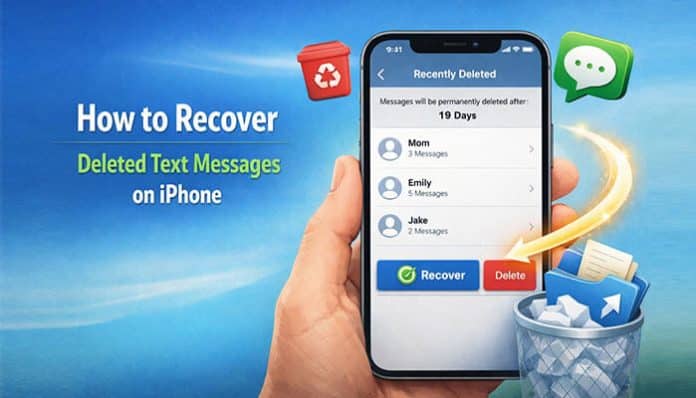

In the modern world, text messages are often filled with vital information like contacts, appointments, and memories. However, sometimes these messages can be deleted accidentally, and you may be left wondering how to recover deleted text messages on iPhone. In this comprehensive guide, we will walk you through the different ways you can use to recover deleted iMessages and SMS messages. Whether you have lost text messages on your iPhone or accidentally deleted an important conversation, you don’t have to worry because, with the right approach, you can recover your deleted text messages. Let’s get started and learn the best ways to get back your deleted messages from your iPhone.
Understanding the Reasons Behind Deleted Text Messages on iPhone
Before we proceed to learn how to recover deleted text messages, it is essential to understand why messages are deleted in the first place. Whether it’s due to accidental deletion, software bugs, or other reasons, text messages can be deleted from your iPhone for a variety of reasons. The iPhone doesn’t delete messages permanently at first but only marks them as deleted, which is why you can recover them if the conditions are right.
Why Do Text Messages Disappear on iPhone?
There are many reasons why text messages go missing. Some of the most common reasons include:
• Accidental Deletion: You may have accidentally deleted an important text message while organizing your messages.
• iOS Update Problems: Sometimes, after an update, some data, such as text messages, may not be synced properly.
• System Bugs: Sometimes, iPhones may have system bugs that can lead to the deletion of text message data.
• Storage Management: If your iPhone storage is full, your iPhone may automatically delete some text messages.
By understanding these reasons, you will be able to understand why text messages disappear and which recovery method is most suitable.
How to Recover Deleted Text Messages on iPhone: Top Methods
Now that we know the reasons why deleted text messages may be lost, let’s move on to the top ways to recover deleted text messages on an iPhone. Each of these methods has a different level of success based on your situation, such as the presence of backups, iCloud syncing, or whether the deleted messages have been overwritten. Let’s discuss each of these methods in detail.
1. Recover Deleted Text Messages Using iCloud
One of the easiest ways to recover deleted text messages is through the use of iCloud, especially if you have been backing up your iPhone to iCloud. iCloud has a feature that allows you to automatically back up your device to the cloud. Here’s how you can recover your deleted text messages using iCloud:
1. Check for iCloud Backup:
• Go to Settings > [your name] > iCloud > iCloud Backup.
• Check the date of your last backup. If the backup was done before you deleted the messages, you can recover them.
2. Restore from Backup:

• Go to Settings > General > Reset > Erase All Content and Settings.
• After the reset, follow the setup process and select Restore from iCloud Backup.
• Sign in with your Apple ID and select the most recent backup to restore your device to its previous state.
Note: This process will result in the loss of data that has been added after your most recent iCloud backup, so it is recommended that you back up your current data before doing this. Also, make sure that you have enough space on your iPhone to restore the backup because the size of the iCloud backup can be quite large.
2. Recover Deleted Text Messages from iTunes Backup
If you have been backing up your iPhone to iTunes on a regular basis, you can restore deleted text messages from your local backup. iTunes (or Finder on macOS Catalina and later versions) can be a very useful tool for restoring deleted text messages that you have backed up on your computer. This method of restoring deleted text messages may be more reliable than restoring from iCloud, since the backup files are stored on your computer.
How to Recover Deleted Text Messages from iTunes
1. Connect your iPhone to the computer:
• Open iTunes on your computer or Finder on your macOS Catalina or later computer.
2. Restore from Backup:
• Select your device and click on Restore Backup.
• Choose the date of the backup that contains the deleted messages.
• Your computer will restore the backup, and your deleted messages will come back.
3. Utilize a Third-Party Recovery Tool
If you have not been regularly backing up your text messages, third-party recovery tools can be a real lifesaver. Third-party recovery tools are capable of scanning your iPhone and attempting to recover deleted text messages even if you do not have a backup. These software programs are typically created to be able to access the storage of your iPhone and recover files that have been deleted but not yet overwritten by new files.
Best Third-Party Recovery Tools for Text Messages
• Dr.Fone – Data Recovery: This software enables you to recover messages from your iPhone without having to create a backup.
• Tenorshare UltData: Another great software program that enables you to recover deleted text messages from your iPhone.
How to Use Third-Party Recovery Tools
- Download and install the third-party recovery software on your computer.
- Connect your iPhone to your computer.
- Open the recovery software and choose the option to Recover from iOS Device.
- Scan your device to recover your deleted text messages.
Although these tools have a great record, they may require you to pay for the full version of the features. Ensure that you choose a great tool to avoid any software issues. There are also tools that offer free trials, which enable you to test whether your messages can be recovered.
4. Check Your iMessages on Other Devices
If you have more than one Apple device (such as an iPad, Mac, or Apple Watch), your deleted messages are still available on one of these devices if they have not yet synced. This is because Apple devices sync messages using iCloud. If your messages are still on another device, they can be easily recovered by syncing them back to your iPhone.
How to Recover Deleted Text Messages from Another Device
1. Open iMessages on your Mac or iPad:
• First, go to the Messages app on your Mac or iPad and check if your deleted messages are still there.
• If your devices are all synchronized using iCloud, you should be able to view your deleted messages that have not been deleted from other devices yet.
This is a very easy process, but it will only work if your devices are all synchronized using iCloud and if your messages have not been permanently deleted from all devices.
5. Use the “Recently Deleted” Folder in iMessages
With the release of iOS 16, Apple has rolled out the “Recently Deleted” folder in iMessages, which provides a grace period to recover deleted messages before they are deleted forever.
How to Recover iMessages from the Recently Deleted Folder
1. Launch the iMessages and access the Messages app.
2. Tap on the Edit option and choose the option to Show Recently Deleted.
3. If your deleted messages are displayed in this folder, you can recover them immediately.
Note: This option is only available for messages that have been deleted in the last 30 days, so you have to be quick if you are looking to recover your messages.
6. Contact Your Carrier for SMS Retrieval
If your iPhone carrier saves your text messages on their servers, they may be able to help you recover deleted messages. Your carrier may save a copy of your SMS messages for a certain period of time before they are deleted for good.
How to Contact Your Carrier for Text Message Recovery
1. Call your carrier’s customer support: Inform them that you need to recover deleted text messages.
2. Follow the carrier’s recovery process: Your carrier may ask you to fill out a form to request recovery or provide proof of ownership of the deleted text messages.
This is the last resort option, and it may not work for all carriers or all types of messages, but it is worth trying if you have lost important SMS conversations. Not all carriers provide message recovery services, so you should check with your carrier for more information.
Tips for Preventing Text Message Loss in the Future
1. Backup Your iPhone Regularly
You should set up automatic backups using iCloud or manually back up your iPhone using iTunes on a regular basis. This will ensure that your text messages are backed up safely and can be restored if needed.
• Enable iCloud Backup: Go to Settings > [your name] > iCloud > iCloud Backup, and turn it on. Ensure that your iPhone is set up to back up automatically every night when it’s connected to a power source.
• Manual iTunes Backups: Manually back up your iPhone using iTunes or Finder. Simply connect your iPhone to your computer and select Back Up Now.
2. Enable iCloud Sync for Messages
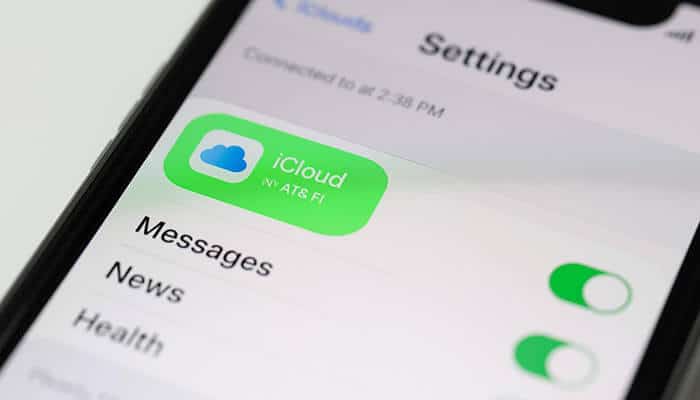
If you are using iMessages on a regular basis, you should make sure that iCloud Messages is enabled. This will ensure that your messages are synced across all of your devices and give you an extra layer of protection. iCloud sync will allow you to view your text messages on any Apple device, including Macs, iPads, and Apple Watches.
• Enable iCloud Messages: Go to Settings > [your name] > iCloud > Messages, and turn it on.
3. Use Third-Party Apps for Extra Backup
You may also want to consider using third-party apps such as iMazing or AnyTrans for the purpose of backing up your text messages. These apps enable you to save backups of your messages on your computer, thus preventing the loss of important information.
4. Check Your Storage Settings
Ensure that your iPhone has enough storage space. If your iPhone is running low on storage space, it may automatically delete your text messages. You should check your Settings > General > iPhone Storage from time to time to ensure that you have enough storage space. If your iPhone is running low on storage space, it may automatically delete old messages to create space for new messages.
Conclusion
It is easy to recover deleted text messages on an iPhone if you know what to do and do it in time. No matter what approach you choose, whether it is iCloud backup, third-party software, or direct recovery from your iPhone, there are many ways to restore deleted messages. Just remember that the most crucial thing is to have regular backups in case of accidental deletion.
With this complete guide on how to recover deleted text messages, you can make sure that no important text message is lost forever. With the right software and a little knowledge, you can restore your messages and start communicating without any worries.
FAQs
1. Can I retrieve text messages without a backup?
Yes, using third-party software, you can retrieve messages even without a backup.
2. How long do deleted text messages last on an iPhone?
Deleted messages will be on your device until new data overwrite them. The sooner you try to retrieve the messages, the better your chances.
3. Are third-party software safe to use for retrieval?
It is always important to use software from reputable companies to prevent malware or loss of data.
4. Can I retrieve text messages from my iPhone after a factory reset?
If you have a backup, you can restore the messages. Without a backup, it is much harder to retrieve them.