


If you use a Windows RDP server for work, automation, trading or even just managing tools remotely, you already know one thing: speed and stability are everything. Nothing is more annoying than clicking something and waiting forever for it to load or worse, getting hit with random disconnects when you’re in the middle of something important.
And the truth is, most RDP problems don’t happen because the server is bad. They happen because the setup isn’t optimized. The good news? You don’t need to be a tech genius to fix this. This blog is going to break down simple, beginner-friendly ways to speed up your Windows RDP server so it runs more smoothly, loads faster and stays stable even when you’re running heavy tasks.
Let’s get into it:
Why Your RDP Feels Slow And What Really Affects Performance
Before optimizing anything, you have to understand what actually slows down your server. Most of the time, it is not just the internet.
Here’s what really matters:
- CPU & RAM resources.
- SSD or NVMe storage is always faster.
- Network latency and routing.
- Too many background apps are running.
- Outdated Windows version.
- Poor security configuration.
- The server is located far from your actual location.
All of these can make your Windows RDP server feel laggy or unstable. So once you know the bottleneck, optimization becomes way easier.
Start With The Right RDP Plan
No amount of optimization can save an underpowered server. If you are starting or functioning with a small budget, you can check out DashRDP’s cheap Windows RDP plans. They are simple, reasonable and ideal for light-to-medium tasks.
But if you are using large apps, trading bots, management tools, or automation tasks, you will require a Windows RDP server with good RAM, CPU, and SSD storage. DashRDP offers powerful private RDP setups with:
- NVMe SSD
- Dedicated bandwidth
- Full admin access
- Fast, stable network
- 24/7 support
Starting with the right plan means you’re not fighting performance issues from day one.
Optimize Your Windows RDP Server Like a Pro
Here’s the fun part: the actual optimization. These steps work even if you’re not tech-savvy.
1. Make Sure You’re Using SSD or NVMe Storage
If your server is still using an HDD, that’s basically ancient. The SSD is fast. NVMe is super fast.
Storage speed directly affects:
- How fast do apps open?
- How quickly do files load?
- Overall system responsiveness.
DashRDP already uses NVMe on their private RDP servers, so you’re covered here.
2. Clean Up Startup Apps & Background Processes
Windows loves starting a bunch of unnecessary apps by default. But guess what? They eat RAM and CPU for no reason.
To fix this:
- Open Task Manager → Startup.
- Turn off everything you don’t use.
- Close apps running in the background.
- Delete bloatware.
This instantly makes your Windows RDP server feel lighter and faster.
3. Keep Windows Updated
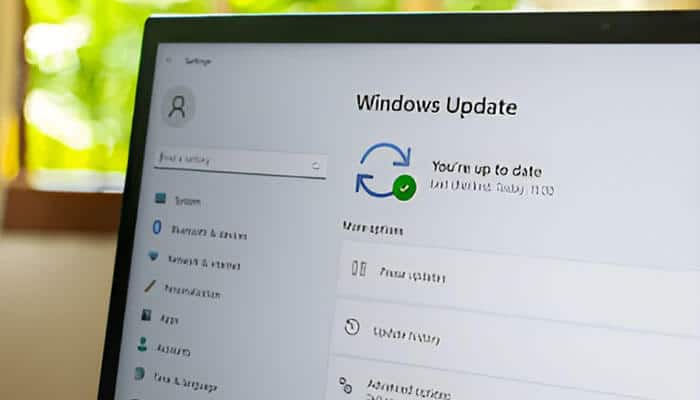
Outdated versions slow down performance and cause stability issues.
Update regularly to get:
- Better speed
- Security patches
- Bug fixes
- Improved performance for remote connections
Windows Server 2019 and 2022 perform the best for RDP tasks.
4. Optimize Your Network Settings
Your network setup plays a massive role in your RDP speed.
Here’s what helps:
- Choose a server location closest to you.
- Use a stable internet connection.
- Reduce packet loss.
- Check latency (Ping under 100ms is good).
- Avoid Wi-Fi when doing serious tasks.
DashRDP has multiple global locations, so picking the nearest server makes a big difference.
5. Manage Users & Sessions Properly
If too many apps or users are running, your Windows RDP server will struggle.
Quick tips:
- Limit the number of simultaneous sessions.
- Avoid running heavy apps together.
- Log out properly instead of disconnecting.
- Restart the server every few days.
These small habits improve long-term stability.
Security Also Affects Performance (Don’t Ignore This)
Many users don’t realize it, but poor security settings can make your server slow or unstable. A weak setup may expose your server to unnecessary attacks or unwanted connections.
Make sure you:
- Use strong passwords.
- Enable firewall rules.
- Change the default RDP port.
- Use IP restrictions or an allow-list.
- Avoid shady software
If you want to avoid dangerous mistakes, check out this guide to RDP security mistakes. One wrong step can seriously impact both security and performance.
For official best practices, you can also check the Cybersecurity and Infrastructure Security Agency (CISA) guidance on securing and restricting Remote Desktop Protocol (RDP) usage.
When Should You Upgrade Your Server?
At some point, optimization won’t be enough, especially if your workload grows. You should consider upgrading your Windows RDP server if:
- You experience lag even after cleaning and optimizing.
- Your RAM usage stays above 90%.
- You run multiple tools at the same time.
- You’re doing trading, automation, or processing tasks.
- Your apps freeze or crash during peak usage.
A stronger plan provides greater stability, faster load times and better long-term performance.
Conclusion
A fast and stable Windows RDP server isn’t about luck; it’s about smart setup and the right tweaks. And honestly, once you optimize your storage, RAM usage, network connection and security, your RDP experience becomes crazy smooth.
If you are ready to take your performance to the next level, exploring optimized Windows RDP options from DashRDP is a smart move. With powerful hardware, fast NVMe storage and stable network performance, your server stays quick, reliable and stress-free.