


Last updated: September 2026
A Windows PC that once started quickly can gradually become slow. You may spend several minutes waiting for the Windows logo, sit at a black screen before sign-in, or reach the desktop only to find that the computer remains unresponsive for several minutes. If you’re looking for how to fix slow startup on Windows, the solution is not always to disable random services or install a PC optimization program.
A slow startup can happen because of startup applications, background services, limited storage, outdated software or drivers, malware, corrupted Windows components, slow storage, or aging hardware.
Microsoft identifies limited storage, excessive startup applications, outdated software, background activity, and older hardware as common reasons for poor Windows performance.
The most important first step is determining where the delay occurs. A PC that takes a long time before the Windows logo needs different troubleshooting from a PC that reaches the desktop quickly but remains busy afterward.
This guide covers 15 core ways to improve startup performance, followed by advanced diagnostic methods, hardware considerations, recovery options, and frequently asked questions.
What Causes Slow Startup on Windows?
Understanding the cause is the foundation of how to fix slow startup on Windows, because different startup stages point to different types of problems.
Windows startup happens in multiple stages rather than as one single operation.
A simplified startup sequence looks like this:
- Firmware/PreBoot initializes the hardware.
- Windows Boot Manager begins loading Windows.
- Windows OS Loader loads the operating system.
- Windows loads the kernel, drivers, and services.
- You sign in.
- Startup applications begin running.
- Background services and applications continue initializing.
Microsoft’s technical documentation separates startup into phases such as PreBoot, Windows Boot Manager, Windows OS Loader, and Windows NT OS Kernel.
This distinction is important because the location of the delay can reveal the likely cause.
Common Causes of Slow Windows Startup
- Too many startup applications
- High-impact startup applications
- Third-party services
- OEM manufacturer software
- Background synchronization
- Antivirus activity
- Low free storage
- Slow mechanical hard drives
- Aging or failing SSDs
- Outdated Windows components
- Problematic drivers
- Malware
- Corrupted system files
- Insufficient RAM
- Firmware or hardware initialization problems
Boot Time vs. Overall Startup Experience
A useful part of how to fix slow startup on Windows is separating true boot delays from the slower period after you sign in.
Boot time generally refers to the period required for the computer to load Windows, while the broader startup experience can also include the time after sign-in before the desktop becomes fully responsive.
This distinction matters because a PC can reach the desktop quickly but remain slow for several minutes because startup applications and background processes are still consuming system resources.
First, Find Out Where Windows Is Slow
Before deciding how to fix slow startup on Windows, identify whether the delay occurs before Windows loads, during loading, or after the desktop appears.
Before trying 15 different fixes, identify when the slowdown happens.
If the Delay Happens Before the Windows Logo
When considering how to fix slow startup on Windows, a delay before the Windows logo shifts attention toward firmware, hardware initialization, external devices, and storage detection.
If your computer spends a long time on the manufacturer’s logo, BIOS/UEFI screen, or a blank screen before Windows begins loading, startup applications are unlikely to be the main problem.
Investigate:
- BIOS/UEFI settings
- Hardware initialization
- Boot-device detection
- External USB devices
- Firmware
- Storage hardware
- Hardware diagnostics
Try disconnecting unnecessary USB devices and external drives temporarily.
If the delay remains, check your computer manufacturer’s support documentation for hardware diagnostics or firmware updates.
Do not update the BIOS/UEFI simply because Windows starts slowly. Firmware updates should be installed only when appropriate for your specific device and according to the manufacturer’s instructions.
If the Delay Happens at the Windows Logo
For how to fix slow startup on Windows when the delay appears at the Windows logo, focus more closely on Windows components, drivers, storage, updates, malware, and boot configuration.
Investigate:
- Windows system files
- Drivers
- Storage
- Windows updates
- Malware
- Boot configuration
If Windows Reaches the Desktop Quickly but Remains Slow
In this situation, how to fix slow startup on Windows usually means checking what continues to run after sign-in rather than treating the problem as a preboot delay.
This is a different problem.
The operating system may already be running while Windows continues launching:
- Startup applications
- Cloud synchronization
- Antivirus scans
- Update processes
- Search indexing
- Manufacturer utilities
- Other background services
Task Manager is particularly useful for identifying this type of slowdown.
How to Fix Slow Startup on Windows: 15 Core Fixes
1. Disable Unnecessary Startup Apps
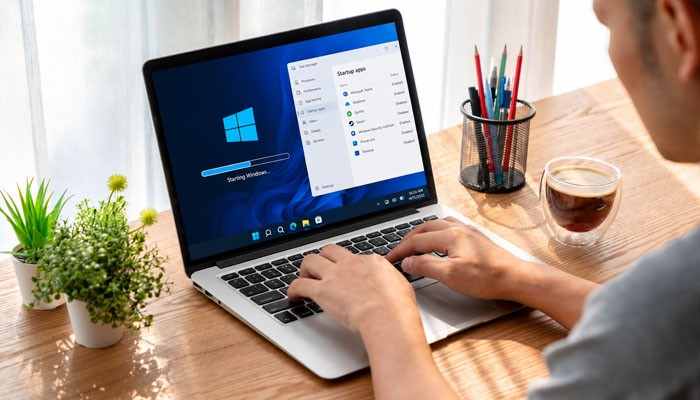
One of the simplest steps in how to fix slow startup on Windows is reducing applications that launch automatically but are not needed immediately.
Startup applications are one of the first things you should investigate.
Microsoft states that applications configured to run at startup can slow boot time and increase background activity.
Disable Startup Apps in Windows 11
Press Ctrl + Shift + Esc.
Open Startup apps in Task Manager.
Review the applications.
Check their Startup impact.
Select an application you do not need immediately after signing in.
Click Disable.
You can also use:
Settings > Apps > Startup
and switch unnecessary applications off.
Examples of Applications You May Not Need at Startup
Depending on your usage, these might include:
- Music players
- Game launchers
- Chat applications
- Meeting applications
- Creative software
- Software update assistants
- Unused cloud utilities
- Programs that you rarely use
Do not disable everything.
Security software, hardware utilities, accessibility software, and other components may legitimately need to start automatically.
2. Understand Startup Impact Before Disabling Apps
Startup Impact helps make how to fix slow startup on Windows more targeted by showing which startup applications use more CPU or disk resources.
One useful Task Manager feature for diagnosing startup performance is Startup impact.
Task Manager measures startup applications using CPU and disk activity.
Microsoft’s current guidance defines the categories approximately as follows:
| Startup Impact | Microsoft Measurement |
|---|---|
| Low | Less than 300 ms CPU time and less than 292 KB disk usage |
| Medium | Less than 1 second but more than 300 ms CPU time, or less than 3 MB but more than 292 KB disk usage |
| High | More than 1 second CPU time or more than 3 MB disk usage |
These measurements are useful for prioritization, but High impact does not mean “bad” or “safe to disable.”
For example, a security application may have a high startup impact but still be important.
Better Rule
Look for applications that are:
- High impact
- Not essential
- Rarely used
- Launching automatically without a clear reason
That gives you a safer starting point.
3. Restart Windows and Establish a Baseline
A baseline makes how to fix slow startup on Windows easier to evaluate because you can compare startup behavior before and after each significant change.
Before changing multiple settings, restart the PC.
Select:
Start > Power > Restart
Then note approximately how long it takes to become usable.
Measure two things:
Power button → sign-in screen
and:
Power button → responsive desktop
The second measurement is particularly important because Windows may display the desktop while background processes are still consuming resources.
Why Establish a Baseline?
Suppose you disable 10 applications, clean the drive, update Windows, and change power settings simultaneously.
If startup improves, you won’t know what caused the improvement.
Instead:
- Measure startup.
- Make one significant change.
- Restart.
- Measure again.
- Keep the change if it helps.
This produces a much more reliable diagnosis.
4. Free Up Storage Space
Checking available storage is a practical part of how to fix slow startup on Windows, especially when the system drive is becoming constrained.
Low storage can contribute to poor Windows performance.
Go to:
Settings > System > Storage
Review which categories consume the most space.
Windows includes Storage Sense, which can automatically remove certain temporary and unnecessary files. Microsoft recommends freeing storage as part of its Windows performance troubleshooting guidance.
Look for:
- Temporary files
- Unused applications
- Old downloads
- Recycle Bin contents
- Large files you no longer need
- Other unnecessary data
Do not manually delete unfamiliar files from Windows system folders.
Is a Nearly Full Drive Always the Cause?
No.
A PC can have plenty of free storage and still start slowly because of startup software, a failing drive, drivers, malware, or other issues.
Storage cleanup is therefore one diagnostic step rather than a guaranteed solution.
5. Uninstall Programs You No Longer Use
Removing software you no longer need can support how to fix slow startup on Windows by reducing unnecessary storage use and background activity.
Unused programs can consume storage and may install background services or startup components.
Go to:
Settings > Apps > Installed apps
Review your installed applications.
Consider removing:
- Old trial software
- Unused game launchers
- Duplicate utilities
- Applications you no longer use
- Old manufacturer utilities
- Software installed for a one-time task
Microsoft specifically recommends uninstalling unused apps because they can free storage and reduce background activity.
Avoid uninstalling unknown drivers or system components merely because you don’t recognize their names.
6. Install Windows Updates
Keeping Windows current is another basic step in how to fix slow startup on Windows when outdated components or unresolved compatibility issues may be involved.
Outdated Windows components can contribute to bugs, compatibility issues, and performance problems.
Go to:
Settings > Windows Update
Then select:
Check for updates
Also review:
Windows Update > Advanced options > Optional updates
when troubleshooting possible driver issues.
Microsoft lists Windows and optional driver updates among its recommended performance troubleshooting steps.
If you are still using Windows 10, remember that it reached end of support on October 14, 2025. If your hardware supports Windows 11, upgrading should be part of your longer-term plan.
7. Update Drivers Carefully
Driver checks belong in how to fix slow startup on Windows when hardware-related delays, freezes, or compatibility problems appear during startup.
Drivers connect Windows to hardware such as:
- Graphics adapters
- Storage controllers
- Network adapters
- Chipsets
- Audio hardware
- Other peripherals
A problematic driver can contribute to boot delays, crashes, freezes, or performance issues.
Start with:
Settings > Windows Update > Advanced options > Optional updates
For device-specific problems, use the official support website of your computer or hardware manufacturer.
Avoid Third-Party Driver Updater Programs
Do not install a driver merely because an unfamiliar website claims that your computer has “dozens of outdated drivers.”
Prefer:
- Windows Update
- Your PC manufacturer’s official support page
- The hardware manufacturer’s official support page
What About BIOS/UEFI Updates?
Firmware updates can affect hardware initialization, but they should be handled separately from ordinary driver updates.
Only install a BIOS/UEFI update intended for your exact computer model and follow the manufacturer’s instructions.
8. Scan for Malware
A malware scan is important when how to fix slow startup on Windows involves a sudden slowdown, unknown processes, or unexpected startup programs.
Malware can consume CPU, memory, disk, and network resources.
If the startup slowdown appeared suddenly, particularly after installing unknown software or opening suspicious files, perform a security scan.
Open:
Windows Security > Virus & threat protection
and run an appropriate scan.
For more serious concerns, Windows Security also provides deeper scanning options, including Microsoft Defender Offline.
Signs That Malware May Be Involved
Watch for:
- Unknown processes
- Unexpected startup programs
- Browser changes
- New applications you did not install
- Unusual network activity
- Sudden system-wide performance degradation
- Repeated security warnings
Do not install multiple full antivirus suites just to test whether they improve performance. Security products can conflict with one another.
9. Reduce Unnecessary Background Activity
Reducing nonessential background activity can help with how to fix slow startup on Windows when the desktop loads but remains sluggish after sign-in.
An application does not need to be visible to consume resources.
Background processes may handle:
- Cloud synchronization
- Notifications
- Updates
- Messaging
- Search
- Media
- File synchronization
- Other services
Microsoft recommends reviewing background activity when troubleshooting Windows performance.
For supported applications, review:
Settings > Apps > Installed apps > [App] > Advanced options
and check its background permissions.
Do Not Disable Every Background Process
Windows itself requires numerous background services.
The objective is to reduce unnecessary activity, not to make the Processes list as short as possible.
10. Set Windows to Best Performance When Appropriate
Power settings can play a supporting role in how to fix slow startup on Windows, although they are more closely related to responsiveness than to the core boot sequence.
Windows provides power modes that balance performance and energy use.
On supported Windows 11 systems, go to:
Settings > System > Power & battery > Power mode
If available, choose:
Best performance
Microsoft notes that this setting can increase power consumption, reduce battery life, and make a laptop run warmer.
Best Performance vs. Balanced
| Setting | Main Purpose | Best For |
|---|---|---|
| Best power efficiency | Reduce energy use | Battery-focused use |
| Balanced | Balance performance and energy | Everyday use |
| Best performance | Maximize responsiveness | Plugged-in or demanding workloads |
This setting is not guaranteed to dramatically reduce boot time. It is more relevant to system responsiveness and CPU performance.
11. Reduce Unnecessary Visual Effects
Visual-effects changes can support how to fix slow startup on Windows on older systems when the main complaint is slow responsiveness after the desktop appears.
Windows uses animations, transparency, shadows, and other visual effects.
On older or lower-powered PCs, reducing these effects can improve perceived responsiveness.
Search for:
Adjust the appearance and performance of Windows
Then choose:
Adjust for best performance
or manually disable selected effects.
Microsoft includes visual-effects adjustments in its Windows performance recommendations.
Important Distinction
Visual effects are more likely to affect post-login responsiveness than the fundamental boot process.
If your computer takes three minutes to reach the Windows sign-in screen, disabling animations is unlikely to be the main solution.
12. Optimize the Storage Drive
Storage maintenance is another part of how to fix slow startup on Windows, but the appropriate approach depends on whether the system uses an HDD or SSD.
Windows includes the Defragment and Optimize Drives utility.
Search Windows for:
Defragment and Optimize Drives
Select the drive and choose Optimize.
Windows handles optimization according to the type of storage.
HDD vs. SSD
| Feature | HDD | SSD |
|---|---|---|
| Moving parts | Yes | No |
| Random access | Relatively slow | Much faster |
| Windows startup | Usually slower | Usually faster |
| Application loading | Slower | Faster |
| Mechanical noise | Possible | None from moving parts |
| Shock resistance | Generally lower | Generally higher |
If Windows is installed on an old mechanical HDD, storage can be one of the biggest startup bottlenecks.
Don’t Treat SSDs Like Old HDDs
Avoid old advice telling everyone to repeatedly defragment an SSD with third-party tools.
Windows’ own Optimize Drives functionality understands different storage types and applies appropriate maintenance.
13. Use Task Manager to Find the Real Bottleneck
Task Manager is especially valuable for how to fix slow startup on Windows because it shows which processes are consuming CPU, memory, disk, or other resources.
Task Manager is one of the most useful tools for diagnosing a slow startup.
Press:
Ctrl + Shift + Esc
Then inspect:
- CPU
- Memory
- Disk
- GPU
- Startup apps
- Processes
Example: High Disk Usage
If the desktop appears but Disk usage remains extremely high, identify the process responsible.
Possible causes include:
- Windows Update
- Antivirus scanning
- Cloud synchronization
- Search indexing
- Application loading
- Storage limitations
Example: High Memory Usage
If memory is nearly full, too many applications may be running or the computer may have insufficient RAM.
Example: High CPU Usage
A process consuming substantial CPU immediately after sign-in may be responsible for the sluggish desktop experience.
This approach is more useful than simply saying “Windows is slow.”
14. Check Whether the Storage Drive Is Failing
Checking drive health is essential to how to fix slow startup on Windows when long boot times appear alongside freezes, file corruption, disk errors, or very slow file access.
Another important part of startup troubleshooting is storage health.
A failing drive can produce:
- Increasingly long boot times
- Freezes
- File corruption
- Application crashes
- Disk errors
- Extremely slow file access
Back Up Important Files First
If you suspect a failing drive, back up important data before performing extensive troubleshooting.
HDD Warning Signs
A mechanical HDD that produces unusual clicking, grinding, or other mechanical noises may be experiencing a physical problem.
An SSD has no moving mechanical parts, so its failure symptoms are different.
If your PC shows persistent storage errors, use the diagnostic tools supplied by the drive or computer manufacturer.
15. Perform a Clean Boot to Find Software Conflicts
A clean boot can move how to fix slow startup on Windows from guesswork to isolation by showing whether a third-party service or startup application is involved.
If startup remains slow after disabling ordinary startup applications, perform a clean boot.
A clean boot starts Windows with essential drivers and startup programs so you can isolate third-party software conflicts. Microsoft specifically distinguishes clean boot from Safe Mode because clean boot gives you greater control over which services and startup items are disabled.
How to Perform a Clean Boot
- Sign in as an administrator.
- Search for msconfig.
- Open System Configuration.
- Select the Services tab.
- Check Hide all Microsoft services.
- Select Disable all.
- Open the Startup tab.
- Select Open Task Manager.
- Disable the enabled startup items for testing.
- Restart the PC.
- Test startup performance.
If the problem disappears, a third-party service or startup application is likely involved.
Use a Systematic Isolation Method
Do not permanently leave everything disabled.
Microsoft recommends progressively re-enabling groups of services or startup items until the problematic component is identified. Testing groups rather than one item at a time can reduce the number of restarts required.
Clean Boot Warning
A clean boot can temporarily remove functionality supplied by third-party services.
After testing, return Windows to normal startup and restore the services and startup applications you actually need.
Microsoft also warns that System Configuration is an advanced utility and should be used carefully.
How to Fix Slow Startup on Windows When the Desktop Appears Quickly
This is one of the most important distinctions for troubleshooting.
Suppose your computer:
- Shows the desktop within 30 seconds
- Takes another 3–5 minutes to become responsive
That is not necessarily a slow Windows boot.
It may be a post-login resource problem.
Open Task Manager immediately after signing in and watch:
- CPU
- Memory
- Disk
Then identify the process responsible.
Common Post-Login Causes
- Cloud synchronization
- Antivirus scanning
- Windows Update
- Game launchers
- Browser processes
- Search indexing
- Manufacturer utilities
- Backup applications
- Too many startup applications
This distinction can prevent you from changing BIOS settings or reinstalling Windows unnecessarily.
How to Diagnose a Slow Boot Before Windows Loads
Another key part of how to fix slow startup on Windows is recognizing that delays before Windows begins loading require a different diagnostic path.
If your computer takes a long time before the Windows logo appears, concentrate on the PreBoot stage.
Microsoft’s startup documentation identifies PreBoot as the stage in which firmware performs initialization and detects a valid system disk.
Try These Checks
- Disconnect unnecessary USB devices.
- Disconnect external drives temporarily.
- Check whether the correct system drive is selected as the boot device.
- Check for hardware diagnostic warnings.
- Review BIOS/UEFI settings.
- Check the manufacturer’s firmware documentation.
- Test the storage device.
Do not assume that disabling Windows startup applications will solve a delay that occurs before Windows begins loading.
Use Safe Mode to Separate Windows Problems from Third-Party Problems
Safe Mode can help with how to fix slow startup on Windows by showing whether the slowdown continues with a limited set of files, drivers, and services.
Safe Mode starts Windows with a limited set of files, drivers, and services.
Microsoft notes that if a problem disappears in Safe Mode, you can eliminate default settings and basic device drivers as likely causes and narrow the investigation toward third-party components.
You can reach Windows Recovery Environment through:
Settings > System > Recovery > Advanced startup > Restart now
Then select the relevant Startup Settings options.
Safe Mode vs. Clean Boot
| Feature | Safe Mode | Clean Boot |
|---|---|---|
| Main purpose | Basic diagnostic startup | Isolate third-party software conflicts |
| Drivers | Limited | Normal drivers with selected services/apps disabled |
| Third-party services | Mostly excluded | Selectively disabled |
| Control | Lower | Higher |
| Best use | Determine whether Windows basics work | Find a problematic service/app |
These tools solve different diagnostic problems.
Use Event Viewer for Advanced Startup Diagnosis
For advanced troubleshooting, Event Viewer can support how to fix slow startup on Windows by helping you look for repeated events that line up with the slowdown.
For users comfortable with Windows administration, Event Viewer can provide additional information.
Microsoft’s startup troubleshooting documentation recommends Event Viewer for investigating recorded startup events and system/application problems.
To open it:
- Press Windows + S.
- Search for Event Viewer.
- Open the application.
- Review relevant System and Application logs around the time of the slow startup.
- Look for repeated warnings or errors that occur at the same time as the slowdown.
Important Warning
Do not assume every warning in Event Viewer is responsible for the problem.
Windows can generate many informational events and warnings during normal operation.
Use Event Viewer to look for patterns, not isolated scary-looking messages.
Does Fast Startup Fix Slow Windows Startup?
Fast Startup may be relevant to how to fix slow startup on Windows, but it should not replace diagnosis of storage, malware, driver, system-file, or hardware problems.
Windows Fast Startup is designed to reduce the time required to start after shutdown by using a hybrid shutdown mechanism.
However, it is not a universal performance fix.
Fast Startup cannot directly repair:
- A failing SSD
- A slow HDD
- Malware
- Excessive startup applications
- Corrupted Windows files
- A problematic driver
- Hardware initialization delays
If you are troubleshooting slow startup, identify the actual bottleneck before changing advanced boot settings.
Does an SSD Make Windows Start Faster?
Hardware upgrades can matter when how to fix slow startup on Windows leads back to an old mechanical hard drive as the main bottleneck.
For a computer still using a traditional HDD, moving Windows to an SSD can produce a substantial improvement in boot and application-loading responsiveness.
The reason is not simply that SSDs have a higher headline transfer speed. Windows startup involves many small reads and writes, and SSDs provide much lower access latency than mechanical drives.
HDD vs. SSD for Windows
| Factor | HDD | SATA SSD | NVMe SSD |
|---|---|---|---|
| Moving parts | Yes | No | No |
| Random access | Slowest | Much faster | Very fast |
| Boot responsiveness | Lower | High | High |
| Noise | Possible | Silent | Silent |
| Best upgrade for an old HDD PC | — | Excellent | Excellent if supported |
The difference between a SATA SSD and NVMe SSD may be less noticeable for ordinary booting than the difference between any modern SSD and an old HDD.
That is an important distinction when deciding where to spend upgrade money.
Can More RAM Fix Slow Startup?
More memory only helps how to fix slow startup on Windows when RAM pressure is actually part of the problem, so check usage before upgrading.
More RAM can help when the computer is running out of memory, but it is not a universal startup fix.
Check:
Task Manager > Performance > Memory
If memory usage is consistently very high during normal workloads, additional RAM may improve overall responsiveness.
However, RAM will not directly fix:
- A failing drive
- An old HDD
- Excessive startup software
- Malware
- Corrupted system files
- A BIOS/UEFI problem
Diagnose memory usage before buying an upgrade.
Can CPU Temperature Cause Slow Performance?
Cooling is not usually the first place to look for how to fix slow startup on Windows, but persistent heat-related performance problems can justify further investigation.
Thermal problems can reduce performance when a processor lowers its operating speed to control temperature.
Possible causes include:
- Dust buildup
- Blocked ventilation
- Failing fans
- Poor cooling
- High CPU workloads
- Aging cooling hardware
If the PC becomes unusually hot, noisy, or slow under load, investigate cooling.
For laptops, make sure ventilation openings are not blocked.
Temperature problems are not usually the first explanation for a slow boot, but they can explain persistent system-wide performance problems.
Why OEM Software Can Affect Startup
Reviewing manufacturer utilities can be useful in how to fix slow startup on Windows when unnecessary background tools are launching automatically.
Manufacturer-installed software is another area that can affect startup.
New PCs may include utilities for:
- Hardware monitoring
- Driver updates
- Support notifications
- Backup
- Device management
- Audio enhancements
- Graphics settings
- Cloud services
Some of these programs are useful. Others may not be necessary for every user.
Startup software and third-party processes can consume CPU and disk resources.
The solution is not to uninstall every manufacturer application.
Instead, determine which ones you actually need.
What You Should Not Do to Speed Up Windows Startup
Knowing what to avoid is also part of how to fix slow startup on Windows, especially when risky tweaks can create new stability or security problems.
Do Not Disable Random Windows Services
Windows services provide important functionality.
Disabling the wrong service can affect:
- Networking
- Security
- Windows Update
- Audio
- Hardware
- Printing
- Sign-in
- Other Windows features
Do Not Delete Files from System Folders
Do not manually delete unfamiliar files from Windows directories.
Use Storage Sense and other supported cleanup tools.
Do Not Modify the Registry Unnecessarily
Registry modifications can affect the entire operating system.
Microsoft specifically warns that registry changes can have unintended consequences.
If Windows provides a supported Settings or Task Manager option, use that first.
Do Not Install Several PC Optimizer Programs
You already have Windows tools for:
- Startup management
- Storage management
- Resource monitoring
- Security scanning
- Drive optimization
- System repair
Adding multiple optimizer programs can create more background activity.
Do Not Disable Security Software Just to Make Startup Faster
If security software genuinely causes an unusual delay, investigate its configuration or contact the vendor.
Do not leave your PC unprotected.
How to Measure Windows Startup Time Properly
Measuring consistently makes how to fix slow startup on Windows more reliable because it shows whether a change improves preboot time, Windows loading, or post-login responsiveness.
There is no universal number of seconds that defines a “slow” Windows startup.
Hardware, storage, firmware, Windows configuration, and applications all affect startup.
Instead of comparing your PC with an arbitrary number, measure it before and after troubleshooting.
Use Three Measurements
Measurement 1: Power-on to Windows logo
Useful for detecting firmware or hardware initialization delays.
Measurement 2: Power-on to sign-in screen
Useful for measuring the Windows boot process.
Measurement 3: Power-on to responsive desktop
Useful for identifying startup applications and post-login activity.
This three-part measurement is much more informative than simply saying:
“My PC takes two minutes to boot.”
A Practical Diagnostic Decision Tree
A decision tree simplifies how to fix slow startup on Windows by matching the location and symptoms of the delay with the next troubleshooting step.
If you want the shortest path to the solution, use this decision tree.
Does the PC take a long time before the Windows logo?
Yes → Check firmware, hardware, external devices, boot-drive detection, and diagnostics.
No → Continue.
Does Windows take a long time to reach the sign-in screen?
Yes → Check drivers, storage, Windows updates, system files, and malware.
No → Continue.
Does the desktop appear but remain slow?
Yes → Check Task Manager, startup apps, background processes, disk usage, and memory.
No → Continue.
Does disabling startup apps improve the problem?
Yes → Identify unnecessary startup software.
No → Continue.
Does a clean boot improve startup?
Yes → Isolate the third-party service or startup application.
No → Continue.
Is the PC using an old HDD?
Yes → Consider moving Windows to an SSD.
No → Continue.
Are there disk errors, file corruption, freezes, or unusual drive behavior?
Yes → Back up your data and investigate storage health.
No → Continue.
Does the PC remain slow after software troubleshooting?
Yes → Evaluate RAM, CPU, cooling, storage, and overall hardware age.
Windows Startup Fixes at a Glance
| Fix | Best For | Difficulty | Potential Benefit |
|---|---|---|---|
| Disable startup apps | Too many apps launching | Easy | High in some cases |
| Review Startup Impact | Finding heavy startup apps | Easy | Diagnostic |
| Free storage | Low disk space | Easy | Moderate |
| Uninstall unused apps | Unnecessary software | Easy | Moderate |
| Install Windows updates | Outdated system | Easy | Variable |
| Update drivers | Driver-related problems | Easy–Medium | Variable |
| Malware scan | Suspicious slowdown | Easy | High if infected |
| Reduce background activity | Heavy background workload | Easy–Medium | Moderate |
| Best performance mode | Low responsiveness | Easy | Variable |
| Reduce visual effects | Older hardware | Easy | Mostly responsiveness |
| Optimize drives | Storage maintenance | Easy | Variable |
| Check Task Manager | Unknown bottleneck | Easy | Diagnostic |
| Check drive health | Possible storage failure | Medium | High if hardware is failing |
| Clean boot | Third-party conflict | Medium | High when applicable |
| SSD upgrade | Old HDD | Medium–High | Potentially substantial |
Recommended Order for Fixing Slow Windows Startup
Following a sensible order keeps how to fix slow startup on Windows focused and reduces the chance of making unnecessary changes.
If you want to avoid unnecessary changes, follow this order.
Step 1: Identify the Delay
Determine whether it occurs before Windows, during Windows loading, or after sign-in.
Step 2: Restart and Establish a Baseline
Measure startup consistently.
Step 3: Check Task Manager
Look at CPU, memory, disk, and Startup apps.
Step 4: Disable Unnecessary Startup Apps
Start with applications you recognize and do not need.
Step 5: Check Storage
Free unnecessary space.
Step 6: Update Windows
Install available updates.
Step 7: Check Drivers
Focus on relevant hardware rather than installing random driver updates.
Step 8: Scan for Malware
Use Windows Security.
Step 9: Check Storage Health
This is especially important for old HDDs and PCs showing disk errors.
Step 10: Repair Windows System Files
Use DISM and SFC when system corruption is suspected.
Step 11: Test Safe Mode or Clean Boot
Use these tools to isolate software and driver problems.
Step 12: Check Hardware
Evaluate RAM, storage, cooling, and overall system age.
Step 13: Consider Windows Recovery
Use repair or recovery options before jumping to a clean installation.
How to Repair Corrupted Windows System Files
System-file repair becomes relevant to how to fix slow startup on Windows when damaged Windows components are suspected.
Windows includes DISM and System File Checker for repairing system components.
Open Command Prompt as administrator and run:
DISM.exe /Online /Cleanup-image /RestorehealthAfter it finishes, run:
sfc /scannowAllow both commands to complete.
Do not close the Command Prompt simply because progress appears to pause.
Why Use DISM and SFC?
DISM can repair the Windows component store, while SFC checks protected system files.
If corrupted system files are contributing to startup problems, repairing them may improve stability and performance.
These commands are not guaranteed to fix every slow-startup problem.
What If Windows Stops Booting?
If the problem progresses beyond how to fix slow startup on Windows and Windows no longer starts, switch from performance troubleshooting to recovery options.
If the issue changes from “slow startup” to Windows cannot start, stop treating it as a normal performance problem.
Windows Recovery Environment provides recovery options for startup problems.
Depending on the situation, available options can include:
- Startup Repair
- Safe Mode
- System Restore
- Uninstalling recent updates
- Reset this PC
- Other recovery tools
Microsoft recommends choosing an appropriate recovery option based on the problem rather than immediately performing the most destructive option.
Back Up Important Files
If Windows is still accessible, back up important data before performing major recovery operations.
When Should You Reset or Reinstall Windows?
A reset or reinstall should generally be considered after less destructive troubleshooting has failed.
Before doing so:
- Back up important files.
- Confirm access to your account.
- Make sure you can access your BitLocker recovery key if applicable.
- Check whether hardware is responsible.
- Try appropriate repair and recovery options.
A clean installation will not fix a failing SSD, defective RAM, or other hardware problem.
How to Fix Slow Startup on Windows FAQs
1. Can Too Many Browser Extensions Slow Down Windows Startup?
Usually not directly, unless the browser launches automatically with Windows. If Chrome, Edge, or another browser opens at startup with many extensions and background processes, it can increase the time before the PC becomes fully responsive.
2. Why Is Windows Startup Slow After an Update?
Windows may perform background configuration, indexing, driver installation, or optimization after an update. If the slowdown continues after several restarts, check for driver problems, failed updates, and unusually high CPU or disk usage.
3. Can External USB Devices Make a PC Boot Slowly?
Yes. External drives, USB hubs, printers, and other peripherals can sometimes delay hardware detection or boot-device checks. Disconnect unnecessary devices temporarily to see whether startup improves.
4. Why Is My SSD PC Still Slow to Start?
An SSD does not guarantee fast startup. Too many startup programs, outdated drivers, malware, low storage, Windows services, damaged system files, or hardware problems can still cause delays.
5. Does Shutting Down Windows Regularly Improve Startup Performance?
Restarting Windows occasionally can clear temporary processes and complete pending updates. However, regularly shutting down or restarting will not permanently fix an underlying startup problem.
6. Can Corrupted Windows System Files Cause Slow Startup?
Yes. Damaged or missing system files can contribute to startup and stability problems. Windows tools such as System File Checker and DISM can help identify and repair certain system-file issues.
7. Why Does Task Manager Show 100% Disk Usage After Startup?
Windows Update, antivirus scanning, search indexing, cloud syncing, startup applications, or a slow storage drive can temporarily push disk usage to 100%. Persistent high disk usage should be investigated further.
8. Can BIOS or UEFI Settings Affect Windows Startup Speed?
Yes. Boot-device order, hardware checks, network boot options, firmware settings, and outdated BIOS or UEFI firmware can affect the time before Windows begins loading. Change firmware settings only when you understand their purpose.
Final Thoughts
Knowing how to fix slow startup on Windows is easier when you identify what is causing the delay instead of applying random performance tweaks. Startup problems can come from unnecessary apps, background processes, outdated drivers, limited storage, malware, damaged system files, or aging hardware.
Start with simple checks such as reviewing startup apps in Task Manager, checking CPU, memory, and disk usage, freeing storage space, installing Windows updates, and scanning for malware. If the problem continues, troubleshooting methods such as Safe Mode, clean boot, Event Viewer, system-file repair, and storage diagnostics can help narrow down the cause.
Hardware should also be considered when software fixes make little difference. A computer still using an older mechanical HDD may benefit significantly from an SSD, while systems with consistently high memory usage may need additional RAM.
The best approach is to make one change at a time and check whether startup performance improves. Using Windows’ built-in diagnostic tools first can help you solve the real problem without relying on unnecessary registry cleaners or risky optimization tricks.