

Last Updated: August 26, 2026
You have signal bars, your mobile plan is active, and your phone may even display 4G, LTE, or 5G—yet websites and apps refuse to load. If you are asking, “Why is my data not working?”, the cause could involve your phone settings, carrier account, SIM or eSIM, coverage, APN configuration, or a temporary software problem.
Most mobile data issues can be fixed without replacing the phone. Start with simple steps such as confirming that mobile data is enabled, toggling Airplane Mode, and restarting the device. If those steps fail, check your plan, SIM selection, roaming status, VPN, data restrictions, software updates, and network settings.
This guide explains 12 practical fixes for mobile data not working on iPhone and Android, based on current guidance from Apple, Google, Samsung, and carrier-support resources.
Quick Answer
Mobile data may stop working because of weak coverage, a carrier outage, an inactive plan, incorrect SIM or network settings, roaming restrictions, or a VPN problem.
Try these quick fixes:
- Turn off Wi-Fi and enable mobile data.
- Toggle Airplane Mode for 15 seconds.
- Restart your phone.
- Check your signal, plan, and selected SIM.
- Contact your carrier if the problem continues.
Key Takeaways
- Signal bars do not guarantee working mobile internet.
- Test mobile data with Wi-Fi turned off.
- Check whether every app or only one app is affected.
- Confirm that the correct SIM is selected for data.
- Do not enter random APN settings found online.
- Reset network settings only after trying simpler fixes.
- Contact your carrier if the plan, SIM, coverage, or device activation may be responsible.
The 12 Fixes at a Glance
| Fix | What to Check | Best For |
|---|---|---|
| 1 | Turn on mobile data | Data was accidentally disabled |
| 2 | Toggle Airplane Mode | Temporary tower connection error |
| 3 | Restart the phone | Stuck modem or software process |
| 4 | Check coverage and outages | Weak signal or local carrier problem |
| 5 | Verify the plan and data limit | Expired, suspended, or limited service |
| 6 | Check SIM, eSIM, and Dual SIM | Wrong line or activation problem |
| 7 | Review roaming and network type | Travel or 5G/LTE problems |
| 8 | Disable VPN and DNS filters | Data icon appears but nothing loads |
| 9 | Check app permissions and Data Saver | Only one app or background service fails |
| 10 | Install software and carrier updates | Data stopped after an update or SIM change |
| 11 | Reset or correct the APN | Calls work but mobile internet does not |
| 12 | Reset network settings | Persistent configuration problems |
What Does “Data Not Working” Mean?
In this guide, “data” means the cellular or mobile internet supplied by your wireless carrier. It is different from Wi-Fi, which connects your phone to a router or local network.
The exact symptoms can help identify the cause.
| What You See | Likely Cause | First Check |
|---|---|---|
| SOS, No Service, or Emergency Calls Only | Coverage, SIM, account, or outage problem | Check coverage and carrier status |
| Signal bars but no 4G, LTE, or 5G icon | Mobile data disabled or wrong SIM selected | Check mobile data settings |
| 4G, LTE, or 5G appears but nothing loads | Outage, congestion, VPN, APN, or plan issue | Test another app and location |
| Only one app does not work | App-level data restriction or app problem | Check the app’s data permission |
| Data stopped after changing SIMs | Activation, carrier lock, or APN issue | Confirm the new SIM is active |
| Data does not work abroad | Roaming or network-selection problem | Check roaming and travel plan |
| Data is very slow | Weak signal, congestion, or throttling | Move locations and check the plan |
| Data stops during phone calls | VoLTE or Dual-SIM limitation | Check call and SIM settings |
| Mobile data works but hots pot fails | Plan or tethering restriction | Check hots pot eligibility |
| Mobile data and Wi-Fi both fail | VPN, DNS, software, or device-wide issue | Disable VPN and restart |
Why Is My Data Not Working?
There is no single cause that applies to every phone. A device can show full bars while its internet session is not properly authenticated. Calls can also work when the data portion of a wireless account is suspended or incorrectly configured.
The most common causes include the following.
Mobile Data Is Turned Off
Mobile data can be disabled accidentally through Control Center, Quick Settings, battery-saving features, or the main Settings app.
Poor Coverage or Network Congestion
Buildings, underground areas, hills, crowds, weather conditions, and distance from a cell tower can affect service. Your phone may display bars but still have a connection too weak or congested for reliable internet access.
Carrier Outage
A local carrier outage can interrupt mobile data while calls or text messages continue working. An outage can also affect one network technology, such as 5G, while LTE remains available.
Expired Plan or Data Limit
Your account may be inactive, overdue, suspended, or missing an active data package. Some unlimited plans reduce speeds after a usage threshold, while prepaid plans may stop data when the allowance expires.
Incorrect SIM or eSIM Selection
Dual-SIM phones allow one line to handle calls and another to provide mobile data. Data may fail if the selected line is inactive, lacks a plan, or has poor coverage.
Roaming Restrictions
When you leave your carrier’s normal service area, your phone may need data roaming. However, turning on roaming without an eligible plan can result in additional charges.
App-Level Data Restrictions
If only one app fails, cellular access may be disabled for that app. Data Saver, Low Data Mode, battery optimization, or background-data restrictions may also affect its behavior.
VPN, Private DNS, or Security Software
A disconnected VPN server, invalid DNS provider, firewall, content filter, or security application can prevent websites and apps from reaching the internet.
SIM, eSIM, or APN Problem
The Access Point Name, or APN, tells your phone how to connect to the carrier’s data network. Incorrect APN information or incomplete SIM provisioning can stop cellular internet.
Carrier Lock or Phone Compatibility
A phone locked to another carrier may reject a new SIM. An unlocked phone can also lack the LTE or 5G bands required by the new network.
Software or Carrier Settings Error
An outdated carrier profile, operating-system bug, or interrupted update can affect network registration and mobile data.
Before Trying the 12 Fixes
Complete this quick test first:
- Turn off Wi-Fi.
- Confirm that signal bars and a 4G, LTE, or 5G icon appear.
- Test a website and a second app.
- Try making a phone call.
- Move to another location.
- Ask someone on the same carrier whether their data works.
| Test Result | What It Suggests |
|---|---|
| No apps or websites work | Carrier, SIM, plan, or network problem |
| Only one app fails | App permission, cache, or server issue |
| Data works elsewhere | Weak coverage or local congestion |
| Calls work but data does not | Plan, APN, or provisioning problem |
| Neither calls nor data work | Outage, inactive SIM, or account block |
| Wi-Fi works but data does not | Problem is limited to cellular service |
| Wi-Fi and data both fail | VPN, DNS, software, or device problem |
1. Make Sure Mobile Data Is Turned On
On iPhone
- Open Settings > Cellular or Mobile Data.
- Turn on Cellular Data.
- If using Dual SIM, select the correct data line.
On Android
- Open Settings > Network & internet, Connections, or SIM manager.
- Select SIMs or Mobile network.
- Turn on mobile data and select the correct SIM.
Menu names vary by manufacturer. Search for “mobile data” in Settings if necessary. Google also recommends checking for a data icon beside the signal bars.
2. Toggle Airplane Mode
Airplane Mode forces the phone to create a new carrier connection.
- Turn on Airplane Mode.
- Wait at least 15 seconds.
- Turn it off.
- Wait for the network icon and test your data.
Apple recommends leaving Airplane Mode on for at least 15 seconds when reconnecting to cellular service.
3. Restart Your Phone
Restarting closes stuck network processes and reconnects the modem and SIM.
After restarting:
- Keep Wi-Fi turned off.
- Wait for the carrier name and network icon.
- Test a website, app, and phone call.
A normal restart does not delete your photos, contacts, or applications.
4. Check Signal Strength, Coverage, and Outages
Signal bars do not always mean that mobile internet is working.
Try these checks:
- Move outside or near a window.
- Leave basements, elevators, and thick-walled buildings.
- Remove a metal or magnetic case temporarily.
- Test the phone in another location.
- Check the carrier’s official outage page.
- Try LTE if 5G appears but remains unstable.
Google notes that buildings, walls, and some cases can interfere with mobile service.
If data works elsewhere, the original location probably has weak coverage or network congestion.
5. Confirm Your Plan, Balance, and Data Limit
Your phone may connect to a tower while data remains blocked at the account level.
Check whether:
- The account is active and paid.
- The line includes mobile data.
- A prepaid package has expired.
- You reached a data limit.
- High-speed data has been reduced.
- The IMEI is blocked or unregistered.
- A local outage is active.
Apple recommends asking the carrier to verify your account, coverage, plan, outage status, and device eligibility.
Check an Android Data Limit
Go to:
Settings > Network & internet > SIMs > Data warning and limit
Confirm that a device-level limit has not turned off mobile data. For accurate usage information, check your carrier’s app or website.
6. Check Your SIM, eSIM, and Dual-SIM Selection
The wrong line may be selected if your phone uses two SIMs.
On iPhone
Open Settings > Cellular > Cellular Data, then select the line with an active data plan.
An iPhone uses one mobile data network at a time. Data behavior may also depend on Allow Cellular Data Switching.
On Android
Open Settings > Network & internet, Connections, or SIM manager. Enable the correct SIM and select it for data.
Check a Physical SIM
- Turn off the phone.
- Inspect the SIM for damage.
- Reinsert it correctly.
- Close the tray and restart.
Ask your carrier for a replacement if the SIM is damaged or repeatedly disappears from Settings.
Check an eSIM
If the eSIM is missing or inactive, contact the carrier. Do not delete it unless the provider confirms that it can be reactivated.
Could the Phone Be Locked or Incompatible?
If data stopped after installing another carrier’s SIM, the phone may be locked or incompatible with the new network.
An unlocked phone can accept another SIM, but it may still lack required LTE or 5G bands.
On iPhone:
Open Settings > General > About and find Carrier Lock.
If No SIM restrictions appears, the iPhone is unlocked. If it does not appear, contact the carrier that locked the device. Only the carrier—not Apple—can unlock it.
On Android:
Ask the carrier to confirm that:
- The phone is SIM-unlocked.
- Its model supports the carrier’s LTE and 5G bands.
- The IMEI is accepted.
- VoLTE and eSIM are supported.
- Imported versions are eligible.
Older 3G-dependent phones may lose service where carriers have retired their 3G networks.
7. Review Roaming and Network Settings
If data stopped while traveling, check roaming and network selection.
On iPhone
Open:
Settings > Cellular > Cellular Data Options > Data Roaming
On Android
Open:
Settings > Network & internet > SIMs > Roaming
Only enable roaming if your plan supports it, as additional charges may apply.
Check the Preferred Network Type
On many Android phones, go to:
Settings > Network & internet > SIMs > Preferred network type
Use the carrier-recommended option. If 5G is unreliable, test LTE temporarily. Supported Pixel phones normally fall back to 4G when 5G is unavailable.
Check the Date and Time
Incorrect time settings can interfere with secure connections and app authentication.
iPhone:
Settings > General > Date & Time > Set Automatically
Android:
Settings > System > Date & time
Turn on Automatic date and time and Automatic time zone.
Restore Automatic Network Selection
Look for Network Selection or Network Operators in your cellular settings. If a carrier was selected manually, return the setting to Automatic.
8. Disable VPN, Private DNS, and Security Filters
A VPN, firewall, custom DNS service, or security app may block internet traffic.
Temporarily disconnect:
- VPN applications
- Custom DNS services
- Firewalls or antivirus web protection
- Ad blockers
- Parental-control filters
- Work or school profiles
Apple notes that some apps and websites may not load correctly while a VPN is active.
On Android, open:
Settings > Network & internet > Private DNS
Change an unresponsive custom provider to Automatic for testing. Do not permanently remove a managed profile without contacting your administrator.
9. Check App Permissions and Data-Saving Modes
If only one app fails, check its cellular permission.
On iPhone
Open Settings > Cellular, find the app, and turn on cellular access. Apps with cellular access disabled can use only Wi-Fi.
On Android
Open:
Settings > Apps > Select the app > Mobile data
Allow mobile and background data.
Also check:
Settings > Network & internet > Data Saver
Turn Data Saver off temporarily or allow unrestricted access for the affected app.
Check Low Data Mode and Battery Saver
On iPhone, open:
Settings > Cellular > Cellular Data Options > Data Mode
Turn off Low Data Mode temporarily.
On Android, check Data Saver, Battery Saver, and manufacturer-specific power settings.
If no app or website loads, the problem is probably not caused by Data Saver alone.
If One App Still Fails
- Force close and reopen it.
- Update the app.
- Check whether its service is down.
- Clear its cache on Android.
- Reinstall it only if your saved information is secure.
10. Install Software and Carrier Updates
Updates can fix modem, SIM, security, and network compatibility problems.
Update an iPhone
Open:
Settings > General > Software Update
Update iPhone Carrier Settings
Connect to Wi-Fi, then open:
Settings > General > About
Wait several seconds and install an update if prompted. Apple notes that a new SIM may require updated carrier settings.
Update Android
Open:
Settings > System > Software updates
Install available updates and restart the phone.
11. Reset or Correct the APN
The APN tells your phone how to connect to the carrier’s data network. It can become incorrect after changing carriers, installing a SIM, transferring an eSIM, traveling, or updating the phone.
Do not use APN values from random websites. Incorrect settings can block data, MMS, or tethering. Apple recommends changing APN information only when directed by your carrier.
Reset APN on iPhone
Open:
Settings > Cellular > Cellular Data Network > Reset Settings
If the option is unavailable, contact your carrier.
Reset APN on Android
Open:
Settings > Network & internet > SIMs > Access Point Names
On Samsung Galaxy phones:
Settings > Connections > Mobile networks > Access Point Names
Choose Reset to default. Enter manual APN values only when supplied by your carrier.
12. Reset Network Settings
Use a network reset only after trying the earlier fixes.
On iPhone
Open:
Settings > General > Transfer or Reset iPhone > Reset > Reset Network Settings
This removes saved Wi-Fi networks, passwords, cellular settings, VPN configurations, and APN information. It does not delete photos or apps.
On Google Pixel
Open:
Settings > System > Reset options > Reset mobile network settings
On Samsung Galaxy
Open:
Settings > General management > Reset > Reset mobile network settings
Record important Wi-Fi, VPN, and custom APN details before resetting.
Run Built-In Mobile Network Diagnostics
Before arranging a repair, use any diagnostic tools provided with the phone. These checks may help separate a SIM, software, network, or hardware problem.
iPhone
On iPhones running iOS 18 or later, Apple says the latest Apple Support app can provide additional diagnostics for some cellular-service problems. Availability varies by device and location. Apple Support
Google Pixel
On Pixel 6 and later phones, open:
Settings > Device health & support
Available diagnostic tests vary by model. Google currently states that calls, mobile-data, and Wi-Fi diagnostics are available only on Pixel 11-series phones in the United States. Other device-health and diagnostic features may be available on additional Pixel models and in other regions.
Samsung Galaxy
- Open Samsung Members.
- Tap Support or Diagnostics.
- Select Phone diagnostics.
- Test SIM card and Mobile network.
Samsung Members can test the SIM, eSIM, mobile network, Wi-Fi, official software, and other components.
Save screenshots of failed tests. They may help your carrier or repair provider diagnose the issue.
Quick iPhone and Android Settings Comparison
| Task | iPhone | Android |
|---|---|---|
| Turn on mobile data | Settings > Cellular > Cellular Data | Settings > Network & internet > SIMs > Mobile data |
| Choose data SIM | Settings > Cellular > Cellular Data | Settings > SIM manager or SIMs |
| Enable roaming | Cellular > Line > Cellular Data Options | SIMs or Mobile networks > Roaming |
| Allow data for one app | Settings > Cellular > App | Settings > Apps > App > Mobile data |
| Check for updates | Settings > General > Software Update | Settings > System > Software updates |
| Reset APN | Cellular > Cellular Data Network > Reset | SIMs or Mobile networks > Access Point Names |
| Reset network | General > Transfer or Reset iPhone > Reset | System or General management > Reset options |
Settings names may differ by country, carrier, device model, and software version.
Why Does My Phone Show 5G but Have No Internet?
The 5G, LTE, or 4G symbol means your phone has registered with a mobile network. It does not guarantee that internet traffic is passing successfully.
You may see 5G without usable internet because:
- The tower is congested.
- The carrier has a data outage.
- Your account is not properly provisioned.
- Your plan has reached a limit.
- The connection is too weak.
- A VPN or DNS service is failing.
- The APN is incorrect.
- The phone repeatedly switches between 5G and LTE.
Toggle Airplane Mode, try another location, and test LTE temporarily. Contact the carrier if the problem affects every app in multiple locations.
Why Do Calls Work but Mobile Data Does Not?
Voice calls, text messages, and mobile data are related services, but they do not always use the same network path or account configuration.
Calls may work while data fails because:
- Your plan includes voice but no active data allowance.
- Mobile data is disabled.
- The wrong Dual-SIM line is selected.
- Data provisioning is incomplete.
- The APN is missing or incorrect.
- A device-level data limit has been reached.
- The carrier has a data-only outage.
If calls work but no app can use data, check the plan and APN before assuming the phone is damaged.
Why Does Mobile Data Stop During a Phone Call?
Mobile data may pause during a call when the phone or carrier does not support simultaneous voice and data on the active network. Dual-SIM settings and disabled VoLTE can also cause the problem.
Possible causes include:
- VoLTE is unavailable or turned off.
- The carrier does not support simultaneous voice and data.
- The call uses a different SIM from the data line.
- Automatic data switching is disabled.
- One SIM loses service while the other handles a call.
- The phone falls back to an older voice network.
On Dual-SIM iPhone
Open:
Settings > Cellular > Cellular Data
Turn on Allow Cellular Data Switching if the option is available and supported by your carrier.
On Google Pixel
Open:
Settings > Network & internet > SIMs
Look for Data during calls or Automatic data switching. Google notes that only one SIM can be the default data line, although supported Pixel phones provide switching options.
On Samsung Galaxy
Open:
Settings > Connections > Mobile networks
Enable VoLTE calls if the carrier and phone provide the option. Samsung notes that simultaneous voice and data depend on network and VoLTE support.
If these settings are unavailable, ask the carrier whether simultaneous voice and mobile data are supported.
Why Is Mobile Data So Slow?
Slow data is different from a complete loss of connection.
Common causes include:
- Weak signal
- Heavy tower congestion
- Carrier speed restrictions
- An exceeded high-speed allowance
- Background downloads
- VPN encryption or a distant VPN server
- An unstable 5G connection
- Poor indoor coverage
- Roaming speed restrictions
- An old or damaged SIM
Run speed tests in two locations and at different times. One speed test is not enough because congestion can change quickly.
What If Mobile Data Works but the Hotspot Does Not?
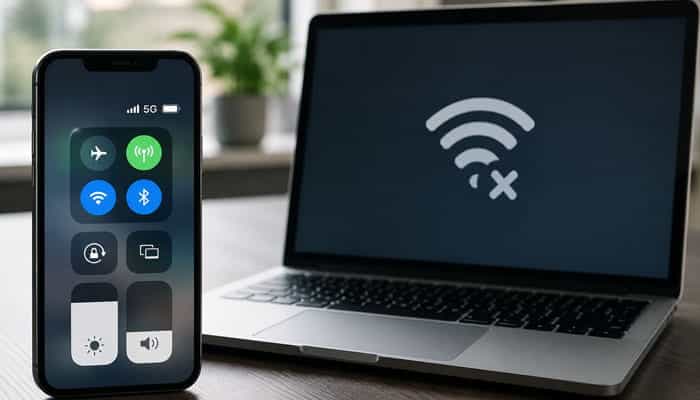
If websites and apps work directly on the phone but connected devices have no internet, the primary cellular connection is probably working. The issue is more likely related to hotspot settings, plan restrictions, or the connection between devices.
Check the following:
- Your plan includes hotspot or tethering.
- The correct SIM is selected for data.
- Personal Hotspot or Wi-Fi Hotspot is enabled.
- Wi-Fi and Bluetooth are enabled on both devices.
- The connecting device has the correct password.
- Battery Saver or Data Saver is not restricting tethering.
- The carrier has not reached a separate hotspot limit.
- A VPN is not blocking tethered traffic.
On iPhone
Open:
Settings > Personal Hotspot > Allow Others to Join
If Personal Hotspot is missing, confirm that cellular data is enabled and ask the carrier whether the plan supports tethering.
On Android
The normal path is:
Settings > Network & internet > Hotspot & tethering > Wi-Fi hotspot
Turn the hotspot off and on, then restart both devices. Google confirms that Android can share cellular data through Wi-Fi hotspot, Bluetooth, or USB tethering, although carrier restrictions may apply.
A working phone connection does not guarantee hotspot access because some carriers treat tethering as a separate plan feature.
What to Do If Data Stopped After a Software Update
A temporary network problem can appear after an iOS or Android update.
Try these steps in order:
- Restart the phone.
- Toggle Airplane Mode.
- Confirm the correct data SIM.
- Check for another software update.
- Check for an iPhone carrier settings update.
- Reset the APN to the carrier default.
- Reset mobile network settings.
- Contact the carrier to refresh or reprovision the line.
Do not immediately perform a factory reset. It erases personal data and cannot solve a carrier outage, inactive plan, blocked IMEI, or incomplete SIM activation.
When Should You Contact Your Carrier?
Contact your carrier when:
- Your plan, payment, or data balance is unclear.
- Data fails in several locations.
- Other users on the same carrier have the same problem.
- The phone displays No SIM, Invalid SIM, SOS, or No Service.
- A new SIM or eSIM has not activated.
- You need verified APN settings.
- The device may be blocked or incompatible.
- Data stopped after porting your number.
- You cannot connect to a roaming partner.
- All 12 fixes have failed.
Ask the carrier to check:
- Account status
- Local outages
- Data provisioning
- SIM or eSIM activation
- IMEI status
- Device compatibility
- Data-plan eligibility
- Roaming access
- APN configuration
When Could It Be a Phone Hardware Problem?
A hardware fault is more likely when:
- The phone cannot detect multiple known-working SIMs.
- The SIM tray is damaged.
- Service disappeared after a drop or liquid exposure.
- The carrier confirms that the account and network are working.
- The phone loses signal where similar devices work normally.
- Diagnostic tools report a modem, SIM, or cellular hardware failure.
Contact Apple, the Android manufacturer, or an authorized repair provider. Avoid opening the phone yourself unless you are qualified.
Common Mobile Data Troubleshooting Mistakes
- Resetting the phone too early: A factory reset cannot fix carrier outages, expired plans, or SIM activation problems.
- Using random APN values: Enter only the APN settings provided by your carrier.
- Testing while connected to Wi-Fi: Turn off Wi-Fi to test mobile data correctly.
- Trusting signal bars alone: Bars show signal strength but do not confirm working internet.
- Enabling roaming without checking costs: Confirm your roaming plan before turning it on.
- Ignoring a one-app problem: Check the app’s data permission, update, cache, and service status.
- Deleting an eSIM too soon: Confirm that your carrier can reactivate it before deletion.
Frequently Asked Questions
1. Why is my data not working even though I have signal?
Signal bars show that the phone can detect a carrier network, but the plan, APN, VPN, SIM provisioning, or carrier internet service may still have a problem.
2. Why is my data not working when I have data remaining?
The line may be inactive, the wrong SIM may be selected, a device-level limit may be enabled, or the carrier may have an outage. Verify the allowance directly with the provider.
3. Why is mobile data not working after changing my SIM?
The new SIM may not be fully activated, the phone may be carrier-locked, the wrong line may be selected, or the APN and carrier settings may need updating.
4. Can a damaged SIM cause mobile data problems?
Yes. A damaged, corroded, poorly fitted, or outdated SIM can cause intermittent service, No SIM warnings, or failed data connections.
5. Why does only one app fail on mobile data?
Cellular access may be disabled for that app, or Data Saver may restrict its connection. The application itself could also be outdated or temporarily unavailable.
6. Will resetting network settings delete my photos?
No. A network reset normally does not delete photos, contacts, or applications. However, it may remove Wi-Fi passwords, VPN configurations, Bluetooth connections, cellular settings, and APN information.
7. Should I turn on data roaming?
Turn it on only when you are outside your normal network and your plan supports roaming. Confirm possible charges first.
8. Why is my data not working abroad?
Roaming may be disabled, the plan may not include international service, or the carrier may lack a compatible roaming partner. Network selection, device compatibility, and APN settings can also be responsible.
Conclusion
If you are still wondering, “Why is my data not working?”, begin by separating a phone problem from a carrier problem. Turn off Wi-Fi, test several apps, inspect the status bar, and try the phone in another location.
Next, confirm that mobile data is enabled, toggle Airplane Mode, restart the device, and verify your plan and SIM. Check roaming, carrier lock, device compatibility, app restrictions, VPN services, Low Data Mode, software updates, and APN information before resetting the network.
If data remains unavailable across multiple apps and locations after all 12 fixes, contact your carrier. The provider can confirm whether the issue involves an outage, inactive plan, blocked device, incompatible phone, SIM provisioning, roaming access, or network configuration. If the carrier finds no problem, contact the phone manufacturer to investigate a possible hardware fault.