

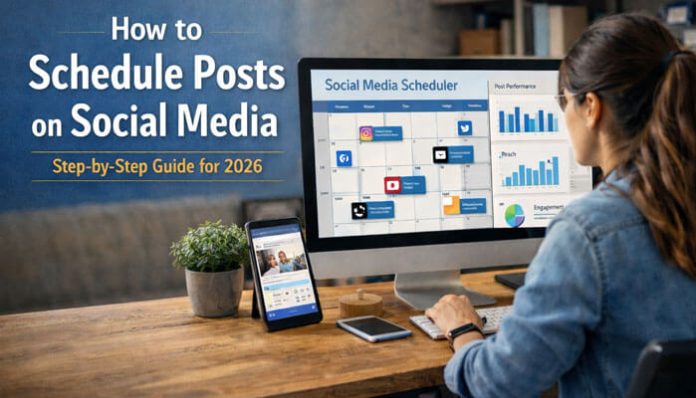

If you want to learn how to schedule posts on social media?, the process is simple. First, decide the goal of the post. Next, create content that fits the platform. Then choose a publishing time, schedule it using a native platform tool or approved third-party scheduler, and review performance after it goes live.
In 2026, most major platforms support scheduling in some form, including Facebook, Instagram, LinkedIn, YouTube, TikTok, and Pinterest. Meta Business Suite supports scheduling for Facebook and Instagram content, LinkedIn supports scheduled posts for personal profiles and Pages, YouTube Studio supports future publishing, TikTok Studio includes creator management tools, and Pinterest business accounts can schedule standard Pins.
Who This Guide Is For
This guide is for:
- Beginners
- Creators
- Small business owners
- Agencies
- In-house marketing teams
- Social media managers
It is especially useful for anyone who wants to post consistently without having to publish everything manually every day.
What Scheduling Social Media Posts Actually Means
Scheduling social media posts means creating a post now and setting it to publish automatically at a future date and time.
That is different from saving a draft. A draft stores the content, but it does not go live by itself.
In 2026, scheduling is no longer just a convenience feature. It is part of a full publishing workflow that helps brands plan content, manage approvals, publish at the right time, and review results with more control.
Scheduling vs Auto-Posting
These two terms are related, but they are not exactly the same.
| Feature | Scheduling | Auto-Posting |
|---|---|---|
| Meaning | You choose a specific date and time for a post | Content is published automatically from a queue, calendar, or workflow |
| Control | More direct control over each individual post | More system-based and automated |
| Setup | Manual time selection for each post | Uses preset rules, queues, or automation settings |
| Best For | Planned posts that need exact timing | Ongoing content pipelines and repeated publishing workflows |
| Flexibility | Easier to customize each post separately | Better for bulk or continuous posting systems |
In simple terms, scheduling gives you direct control over each post, while auto-posting is often more system-based.
Why Scheduling Matters in 2026
Social media publishing is more complex than it used to be. Teams now manage short-form videos, graphics, carousels, thought-leadership posts, product launches, evergreen content, and reactive content across several platforms at once.
That is why knowing how to schedule posts on social media matters more in 2026. A clear scheduling workflow helps you stay consistent, reduce last-minute posting stress, and create better content in batches instead of rushing every day.
Scheduling also helps with time-zone planning, campaign launches, cross-platform coordination, and approval workflows. Tools like Meta Business Suite, Buffer, Hootsuite, Later, and Sprout Social all position scheduling as part of a broader publishing and planning system rather than a one-click feature.
Benefits of Scheduling Social Media Posts
Scheduling social media posts offers several practical benefits.
Saves time
Batching content is usually faster than stopping every day to publish manually.
Improves consistency
A scheduling habit makes it easier to post regularly instead of randomly.
Supports better planning
You can connect your posts to launches, promotions, events, seasonal moments, blog content, and evergreen campaigns.
Helps teams collaborate
Scheduled posts give teams time to review, approve, revise, and organize content before it goes live.
Makes timing easier
You can publish when your audience is active, even if that time falls outside normal working hours.
Reduces avoidable mistakes
A planned workflow gives you more time to catch broken links, bad crops, typos, missing tags, or wrong time zones before publishing.
Step-by-Step: How to Schedule Posts on Social Media
1. Start with the goal
Before you schedule anything, decide what the post is meant to do.
Ask questions like:
- Is the goal to build reach?
- Drive clicks?
- Increase engagement?
- Support a launch?
- Generate leads?
- Build authority?
Your goal affects the format, caption, CTA, and publishing time.
2. Choose the right platform
Not every content idea belongs on every platform.
A simple guide:
- Instagram: visuals, carousels, Reels
- Facebook: links, local promotions, community content
- LinkedIn: professional insight, B2B content, company updates
- TikTok: short-form discovery content
- YouTube: long-form video, Shorts, series publishing
- Pinterest: evergreen discovery content
- X: quick commentary, live updates, conversation
3. Prepare platform-ready content
Before opening the scheduler, finalize the post.
That often includes:
- Caption
- Media
- Links
- Hashtags
- CTA
- Thumbnail
- Tags or mentions
- Alt text where needed
Do not copy the exact same post everywhere. Keep the core idea, but adapt the wording and format for each platform.
4. Upload and schedule using the right tool
Whenever possible, start with the native platform tool.
That is often the easiest option for individuals, creators, and smaller brands learning how to schedule posts on social media in a simple and organized way.
Examples:
- Instagram and Facebook often use Meta Business Suite for scheduling posts, Stories, and some video formats.
- LinkedIn supports scheduling for both personal posts and Page posts.
- YouTube Studio supports scheduled video publishing.
- TikTok Studio includes upload, schedule, and edit functions for creators.
- Pinterest business accounts can schedule standard Pins.
5. Check time zone, links, and formatting
Before confirming the scheduled post, review:
- Time zone
- Links
- Thumbnail
- Crop
- Spelling
- CTA
- Mentions
- Hashtag formatting
- Platform-specific preview
Even a small mistake can hurt performance or create confusion.
6. Review the queue or calendar
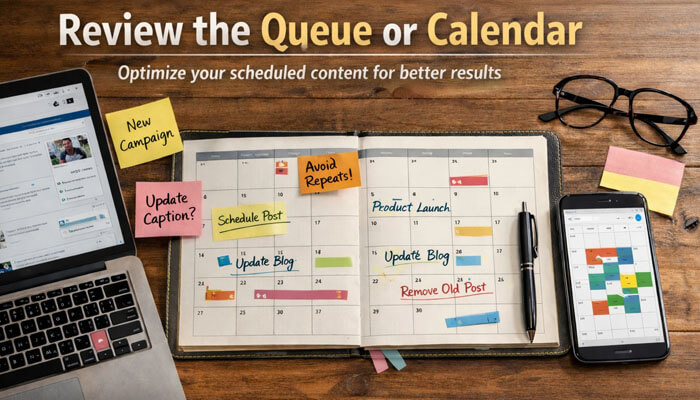
A good scheduling workflow does not stop after setting one post.
Use your queue, calendar, or scheduled-content area to:
- Preview future posts
- Edit weak captions
- Reschedule around new campaigns
- Avoid repetition
- Remove outdated content
7. Review results after publishing
Scheduling helps execution, but improvement comes from review.
After the post goes live, check:
- Reach
- Impressions
- Engagement
- Saves
- Shares
- Watch time
- Click-through rate
- Conversions
How to Schedule Posts on Instagram
Instagram scheduling is commonly handled through Meta Business Suite, which supports Facebook and Instagram publishing in one place. Meta’s official business help pages explain how to schedule content on desktop and mobile through Business Suite.
A simple Instagram workflow:
- Open Meta Business Suite.
- Create a post or Reel.
- Add your caption, media, tags, and settings.
- Choose the scheduling option.
- Select your date and time.
- Review the preview and confirm.
For most brands, Instagram scheduling works best when content is prepared in batches and checked for crop, caption flow, first-line hook, and thumbnail quality before it is scheduled.
How to Schedule Posts on Facebook
Facebook scheduling is also handled easily through Meta Business Suite. Meta states that Business Suite can be used to create and schedule Facebook and Instagram posts, Stories, and Reels from desktop and mobile.
A simple Facebook workflow:
- Open Meta Business Suite.
- Click Create post.
- Add your copy, media, and links.
- Select Schedule for later.
- Choose the date and time.
- Save the scheduled post.
Facebook scheduling is useful for promotions, link posts, community updates, local announcements, and repeatable evergreen content.
How to Schedule Posts on LinkedIn
LinkedIn officially supports scheduled posting for personal posts and Page posts. LinkedIn’s help documentation says scheduled posts can be set in advance, and for some workflows the time can be set from minutes ahead up to about three months depending on the post type and interface.
A simple LinkedIn workflow:
- Start a post.
- Write your post and attach media if needed.
- Click or tap the clock icon.
- Select the date and time.
- Confirm the schedule.
- Review or edit the post later from your scheduled-posts area.
LinkedIn scheduling is especially useful for thought-leadership content, company announcements, hiring updates, B2B campaigns, and newsletter promotion.
How to Schedule Posts on TikTok
TikTok’s scheduling options can vary by account type and interface, but official TikTok support says TikTok Studio is a content creation and management tool where creators can upload, schedule, and edit posts. TikTok’s business materials also describe a web-based video scheduler flow.
A practical TikTok workflow:
- Open TikTok Studio or TikTok’s creator publishing flow.
- Upload the video.
- Add the caption, cover, and settings.
- Choose a future date and time if scheduling is available.
- Confirm the scheduled post.
TikTok scheduling works best when you plan around content consistency but leave room for trend reactions and timely edits.
How to Schedule Posts on YouTube
YouTube scheduling is straightforward through YouTube Studio. Google’s help pages state that creators can upload a video, set it to Scheduled, and choose the future publish date and time.
A simple YouTube workflow:
- Open YouTube Studio.
- Upload your video.
- Add the title, description, thumbnail, and other settings.
- Choose Scheduled.
- Select the publish date and time.
- Finish the upload.
This works well for long-form content, weekly publishing series, educational videos, launch content, and Shorts planning workflows.
How to Schedule Posts on Pinterest
Pinterest Business Help says business accounts can schedule standard Pins in advance, up to 30 days ahead, and maintain up to 10 scheduled Pins at a time. Pinterest also notes that some fields can be edited after scheduling, though the image or video itself cannot be changed once scheduled.
A simple Pinterest workflow:
- Create a Pin.
- Add the image or video, title, board, description, and link.
- Choose the publish-later option.
- Select the date and time.
- Confirm the scheduled Pin.
Pinterest scheduling is especially useful for evergreen posts, blog graphics, product discovery, seasonal content, and traffic-focused campaigns.
Best Native Tools by Platform
Here are the strongest native scheduling options by platform:
- Meta Business Suite: best for Facebook and Instagram scheduling and basic business publishing workflows.
- LinkedIn scheduling: strong for personal brands, executives, and company Pages.
- TikTok Studio: useful for creator publishing, content management, and post scheduling where supported.
- YouTube Studio: best for scheduled video publishing.
- Pinterest business scheduling: strong for evergreen Pin workflows.
If you mainly post on one or two platforms, native tools are usually the best place to start.
Best Tools to Schedule Social Media Posts in 2026
If you want more than native tools, these are some of the strongest mainstream options in 2026. Choosing the right tool can make how to schedule posts on social media much easier, especially when you are managing multiple platforms, content types, or team workflows.
Meta Business Suite
Best for Facebook and Instagram users who want a free first-party option with scheduling and basic insights. Meta describes it as a place to create or schedule posts and Stories across Facebook and Instagram.
Buffer
Good for solo creators, consultants, and small teams that want simple scheduling, a calendar view, and a lighter workflow. Buffer highlights social media scheduling, platform-specific post customization, and a free plan on its official pages.
Hootsuite
Better for brands managing many accounts, bulk scheduling, stronger reporting, and larger operational workflows. Hootsuite promotes bulk scheduling, best-time recommendations, and broader multi-account management.
Later
Useful for creators and visual-first brands that want planning tools, scheduling, analytics, and a stronger content-calendar feel. Later’s official pages highlight social media scheduling, AI-powered insights, and support across several networks.
Sprout Social
Best for larger teams, agencies, and brands that need approvals, collaboration, publishing calendars, and stronger reporting. Sprout highlights publishing, planning, content scheduling, and message approval workflows.
Can You Schedule Social Media Posts for Free?
Yes, often you can. Many native tools are free to use within the platform ecosystem. Meta Business Suite is a free Meta business tool, and Buffer also offers a free plan. Pinterest scheduling is tied to business-account features.
Free options are great for:
- Beginners
- Solo creators
- Small businesses
- Simple publishing workflows
However, advanced features usually move into paid plans.
These often include:
- Team approvals
- Deeper analytics
- Unified inbox tools
- Cross-platform reporting
- Heavier account management
- Advanced collaboration
Can You Schedule Social Media Posts from Your Phone?
Yes. Meta officially documents mobile scheduling in Meta Business Suite, and LinkedIn’s help pages also describe scheduling from mobile. TikTok Studio can be accessed in app and via web with some tools depending on the experience.
Mobile scheduling is useful when you want to:
- Make quick edits
- Reschedule fast
- Manage posts on the go
- Handle day-to-day publishing
Desktop is still easier for batch planning, file organization, longer captions, and calendar-based review.
Best Time to Schedule Posts on Social Media
There is no single universal best time for every account.
Your best posting time depends on:
- Your audience
- Platform behavior
- Content type
- Location
- Business goal
Recent 2026 data from Sprout Social found that, overall, engagement tends to be strongest between 11 a.m. and 6 p.m., with Tuesdays and Wednesdays performing especially well across many platforms. Sprout also notes that its timing data is localized to users’ own time zones. LinkedIn’s own marketing guidance highlights weekdays, especially mid-morning and lunchtime on Tuesday through Thursday, as stronger windows for LinkedIn activity.
That said, generic best-time charts are only starting points. Your own analytics matter more than broad averages.
How to Choose the Right Posting Time
The best method is to test your own data.
A simple process:
- Pick 3 or 4 recurring time windows.
- Schedule similar content into those slots.
- Measure results for 4 to 6 weeks.
- Keep the strongest-performing windows.
- Adjust by platform and content type.
This creates a schedule based on your audience instead of guessing.
How Far in Advance Should You Schedule?

For most people, one to two weeks ahead is a strong starting point.
That is enough to stay organized without making the calendar too rigid.
A practical rule:
- Evergreen content: can be planned further ahead
- Campaign content: should match launch timing
- Trend content: should stay flexible
- Community content: may need fast updates
A balanced schedule gives you structure without making your brand feel robotic.
How Many Social Media Posts Should You Schedule Per Week?
There is no perfect universal number, but a sustainable rhythm is usually better than an aggressive one.
A practical starting point:
- Main platform: 3 to 5 posts per week
- Secondary platforms: 2 to 4 posts per week
- Reactive content: 1 to 2 flexible posts when relevant
Quality matters more than volume. A smaller number of strong posts usually performs better than filling the calendar with weak content.
What Content Should Be Scheduled and What Should Stay Flexible?
Not everything should be planned the same way when learning how to schedule posts on social media effectively.
Content that can be scheduled early
- Tutorials
- Educational posts
- FAQs
- Product explainers
- Testimonials
- Evergreen posts
- Repurposed blog content
- Series-based content
Content that should stay flexible
- Trend reactions
- Breaking news
- Live event commentary
- Fast community responses
- Sensitive announcements
- Time-critical updates
The best workflow mixes stable content with room for reactive publishing.
How Teams Review and Approve Scheduled Posts
For teams, a simple workflow often works best:
- Draft
- Internal review
- Approval
- Scheduling
- Publishing
- Performance review
This reduces errors and lowers the risk of off-brand, outdated, or non-compliant content going live.
Sprout Social’s official materials describe multi-step message approval workflows, shared publishing calendars, and draft collaboration. That reflects a broader 2026 trend: scheduling is now closely tied to approvals, team roles, and workflow clarity.
How to Repurpose Scheduled Posts Across Platforms
Repurposing helps you get more value from one idea.
Examples:
- Turn a blog post into a LinkedIn post
- Turn a quote into an Instagram graphic
- Turn a tutorial into a Reel or TikTok
- Turn a long video into Shorts
- Turn a carousel idea into a Pinterest Pin set
- Turn webinar points into a Facebook post series
Repurposing works best when the idea stays the same but the execution fits each platform.
How to Edit or Reschedule Scheduled Social Media Posts
Editing and rescheduling are normal parts of publishing.
Most schedulers let you:
- Review future posts
- Edit the caption
- Change the date and time
- Remove the post before publishing
LinkedIn officially describes viewing, editing, rescheduling, and deleting scheduled posts. Pinterest says scheduled Pins can have their publish date, title, board, description, and link updated, although the creative asset cannot be changed after scheduling.
Always do a final review before the post goes live.
Key Metrics to Track After Scheduling Posts
After a scheduled post publishes, track:
- Reach
- Impressions
- Engagement rate
- Click-through rate
- Saves
- Shares
- Watch time
- Conversions
- Audience growth
- Comments quality
This data helps you improve timing, format, CTA style, and content quality over time.
Simple Social Media Scheduling Calendar Example
A simple weekly structure can make planning easier:
- Monday: educational content
- Wednesday: engagement content
- Friday: promotional content
- Sunday: community or behind-the-scenes content
This helps keep the feed balanced and avoids turning every post into a sales message.
Why Can’t I Schedule a Post on Social Media?
If scheduling is not working, common reasons include:
- Unsupported post type
- Account-type restrictions
- Missing admin permissions
- Platform-specific feature limits
- Time-zone mismatch
- Upload problems
- Mobile interface limitations
- Tool or API restrictions
- Approval workflow not completed
If scheduling fails, check permissions, account type, media format, and platform rules before assuming the tool is broken.
Social Media Scheduling Checklist
Before you schedule, check:
- Caption is ready
- Image or video is optimized
- Link is tested
- CTA is added
- Hashtags are reviewed
- Mentions are correct
- Thumbnail is checked
- Time zone is correct
- Platform format is confirmed
- Preview looks right
This checklist prevents many easy mistakes.
Common Scheduling Mistakes to Avoid
The biggest mistakes include:
- Posting identical copy on every platform
- Scheduling too far ahead without review
- Ignoring comments after publishing
- Forgetting final checks
- Using the wrong time zone
- Relying on scheduling without strategy
- Never reviewing performance
- Leaving no space for real-time content
Scheduling is helpful, but it is not a replacement for audience understanding.
Native Tools vs Third-Party Schedulers
| Factor | Native Tools | Third-Party Schedulers |
|---|---|---|
| Best For | Managing one or two platforms | Managing multiple accounts or brands |
| Access | Direct platform access | One dashboard for several platforms |
| Scheduling Style | Simple built-in scheduling | Unified calendar and broader workflow control |
| Collaboration | Basic or limited team features | Better for approvals and team collaboration |
| Analytics | Platform-specific insights | Cross-platform analytics and reporting |
| Workflow | Good for straightforward publishing | Better for multi-brand or multi-client workflows |
| Cost | Often free built-in options | Usually more advanced paid features |
A hybrid model often works best. Many brands use native tools where they are strongest, then use a scheduler like Buffer, Hootsuite, Later, or Sprout Social when they need cross-platform planning or team workflows.
A Simple Weekly Scheduling Workflow
A beginner-friendly weekly system looks like this:
Monday
Plan topics, offers, and goals.
Tuesday
Create captions, visuals, and video assets.
Wednesday
Schedule the week’s posts.
Thursday
Engage with comments and adjust weak scheduled items.
Friday
Review performance and note what to repeat next week.
This gives you a repeatable rhythm that is easier to maintain long term.
30-Day Beginner Plan for Social Media Scheduling
Week 1
Choose your main platform, define your goals, and list 5 to 7 content ideas.
Week 2
Create your first batch of posts and schedule one week ahead.
Week 3
Monitor performance, reply to comments, and adjust poor time slots or weak captions.
Week 4
Review your numbers, identify your strongest post types, and build next month’s calendar from real data.
This is one of the easiest ways to learn how to schedule posts on social media without making the system too complicated too early.
Final Thoughts
Learning how to schedule posts on social media is not just about finding the calendar icon inside an app.
The real goal is to build a workflow that combines planning, timing, platform-specific formatting, accurate publishing, and post-publish review. That is what turns scheduling from a convenience feature into a real growth system.
The best results usually come from consistency, not randomness. They also come from using the right tool for the right platform, checking your queue often, leaving room for flexible content, and improving based on performance.
If you are serious about learning how to schedule posts on social media, start small, stay consistent, keep your workflow simple, and let your own data guide the next step.
Frequently Asked Questions (FAQs)
1. Can social media scheduling help global brands reach international audiences?
Yes. Scheduling allows brands to publish content at optimal times across different time zones, helping them connect with global audiences without manual posting.
2. Should you pause scheduled posts during sensitive situations or breaking news?
Yes. It is important to review and pause scheduled posts during major events or crises to avoid publishing content that may feel irrelevant or inappropriate.
3. Can scheduled social media posts still feel personal and engaging?
Yes. Scheduled posts can feel authentic when they use a natural tone, relevant messaging, and are followed by real-time engagement like replying to comments.
4. Is bulk scheduling social media posts a smart long-term strategy?
Bulk scheduling works well for evergreen and planned content, but it should be balanced with flexible posting to respond to trends and audience interactions.
5. How often should you review scheduled social media posts before they go live?
You should review scheduled posts regularly, especially before publishing. This helps catch errors, update outdated content, and ensure alignment with current events or campaigns.
