

Last Updated: August 6, 2026
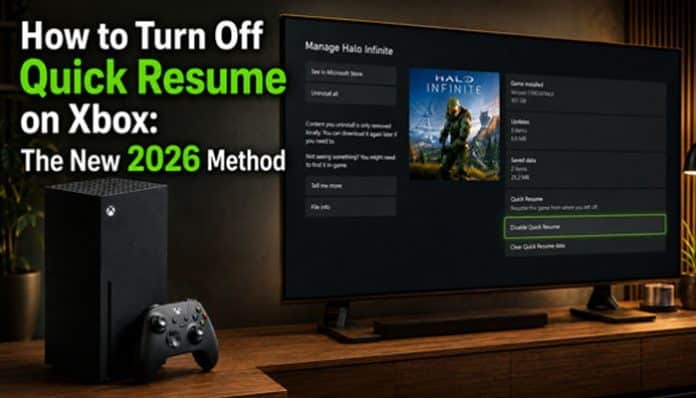
Quick Resume is one of the most convenient features on Xbox Series X and Xbox Series S. It lets supported games remain suspended so you can switch between titles and return without sitting through the entire startup process again. But Quick Resume is not ideal for every game. Always-online titles can return to expired server sessions, some games may behave poorly after being suspended for a long time, and other players simply prefer a clean launch every time. If you’re searching for how to turn off Quick Resume on Xbox, the answer changed significantly in 2026.
Microsoft now lets Xbox Series X|S players disable Quick Resume on a per-game basis, allowing troublesome titles to launch fresh while Quick Resume remains available for the rest of your library.
Microsoft began testing the feature with Xbox Insiders in March 2026 and announced broader availability on April 30, 2026.
This guide explains the new method step by step, along with how to remove an existing Quick Resume state, check whether a game is using Quick Resume, protect your saved progress, troubleshoot problems, manage external-storage games, and understand the difference between disabling, removing and quitting a title.
Quick Answer: How to Turn Off Quick Resume on Xbox
On an updated Xbox Series X or Xbox Series S:
- Highlight the game you want to change
- Press the Menu button on your Xbox controller
- Select Manage game and add-ons
- Open Quick Resume settings
- Select Disable Quick Resume
The game should now launch fresh instead of being restored through Quick Resume.
Microsoft also provides another management path:
Quick Resume group → More options → Manage Quick Resume
The important point is that the setting works per game. Microsoft does not currently document a single console-wide master switch that disables Quick Resume for every title at once.
For readers comparing older tutorials about how to turn off Quick Resume on Xbox, this per-game distinction is the most important thing to remember.
At a Glance
| Question | Answer |
|---|---|
| Can Quick Resume be turned off in 2026? | Yes |
| Can it be disabled for one game? | Yes |
| Is there one global switch for every game? | No global switch is currently documented |
| Does disabling Quick Resume delete saves? | No |
| Does it work on Xbox Series X? | Yes |
| Does it work on Xbox Series S? | Yes |
| Is Disable the same as Remove from Quick Resume? | No |
| Can Quick Resume be enabled again? | Yes |
| Can games be pinned to Quick Resume? | Yes, up to two |
Key Takeaways
- Xbox added per-game Quick Resume controls in 2026.
- You can disable Quick Resume only for games that cause problems.
- Disable, Remove from Quick Resume, and Quit do different things.
- Removing a game clears the current suspended state but does not disable future Quick Resume.
- Quick Resume is separate from normal saved-game progress.
- Up to two games can be pinned to Quick Resume.
- Online games may benefit most from disabling the feature.
- Quick Resume is available on Xbox Series X|S, not Xbox One.
What Is Quick Resume on Xbox?

Quick Resume is a feature on Xbox Series X and Xbox Series S that lets supported games stay suspended so you can return close to where you stopped.
For example, you could:
- Pause an RPG
- Open a racing game
- Switch to a platformer
- Return to the RPG later
- Continue from near where you left off
Quick Resume is especially useful if you switch between several games regularly.
Why Quick Resume Is Different From Leaving a Game Running
Xbox does not keep every suspended game actively running in memory.
Instead, Quick Resume stores game-state information so supported sessions can survive shutdowns and even the console being unplugged.
That is why turning off your Xbox does not necessarily clear every Quick Resume state.
What Changed With Quick Resume in 2026?
The 2026 update changed how to turn off Quick Resume on Xbox by adding a proper per-game disable option.
Previously, Xbox Series X|S players could:
- Quit games.
- Remove Quick Resume states.
- View the Quick Resume group.
- Pin selected games.
But there was no standard setting to permanently exclude one game from Quick Resume.
Microsoft began testing per-game controls with Xbox Insiders in March 2026 and announced wider availability on April 30, 2026.
The two main management routes are:
- Game tile → Manage game and add-ons → Quick Resume settings
- Quick Resume group → More options → Manage Quick Resume
Old Method vs New 2026 Method
| Quick Resume Control | Older Method | 2026 Method |
|---|---|---|
| Quit a game | Yes | Yes |
| Remove Quick Resume state | Yes | Yes |
| Pin selected games | Yes | Yes |
| Disable Quick Resume for one game | No | Yes |
| Keep Quick Resume for other games | Yes | Yes |
| Console-wide master switch | No | Not currently documented |
The main advantage is that troublesome games can now launch fresh automatically instead of requiring you to quit or remove them from Quick Resume every time.
How to Turn Off Quick Resume on Xbox Series X|S
If you want to know how to turn off Quick Resume on Xbox, follow these five steps:
Step 1: Find the Game
Locate the game from:
- Xbox Home
- Recent games
- My games & apps
- Installed-game library
You do not need to launch it first.
Step 2: Open the Game’s Options
Highlight the game and press the Menu button on your Xbox controller.
Step 3: Select Manage Game and Add-Ons
Choose:
Manage game and add-ons
Step 4: Open Quick Resume Settings
Select:
Quick Resume settings
Step 5: Disable Quick Resume
Choose:
Disable Quick Resume
The setting applies only to that game, and future launches should start fresh instead of resuming from a suspended state.
Repeat the steps for any other games you want to exclude.
Method 2: Turn It Off From the Quick Resume Group
If the game already appears in your Quick Resume group, you can manage it from there.
This gives you a second route for how to turn off Quick Resume on Xbox without leaving the Quick Resume group.
- Open My games & apps.
- Find the Quick Resume group.
- Highlight the game.
- Open More options.
- Select Manage Quick Resume.
- Disable Quick Resume for that title.
For most players, the easiest path to remember is:
Game tile → Manage game and add-ons → Quick Resume settings
The Quick Resume-group method is particularly useful when you are already checking which games have suspended states stored.
How to Tell If a Game Is Using Quick Resume
Before checking how to turn off Quick Resume on Xbox, first confirm whether the game is currently suspended.
To check:
- Press the Xbox button.
- Open My games & apps.
- Find the Quick Resume group.
- Look for the game.
If the title appears there, Xbox currently has a Quick Resume state stored for it.
Available options may include:
- Launch
- Remove from Quick Resume
- Pin to Quick Resume
- Manage Quick Resume
- Disable Quick Resume
Quick Resume Group vs Recent Games
These are different.
- Recent games shows titles you played recently.
- Quick Resume group shows games with an active suspended state.
This makes the Quick Resume group more useful when troubleshooting resume-related problems.
Disable Quick Resume vs Remove From Quick Resume vs Quit
These options sound similar, but they do different things.
Disable Quick Resume
Prevents that game from using Quick Resume in future sessions until you turn it back on.
Remove From Quick Resume
Clears the game’s current suspended state, but Xbox may create another Quick Resume state later.
Quit
Closes the current game session without changing its future Quick Resume setting.
What’s the Difference?
| Action | Clears Current State | Stops Future Quick Resume |
|---|---|---|
| Quit | Yes | No |
| Remove from Quick Resume | Yes | No |
| Disable Quick Resume | Yes | Yes, until re-enabled |
| Restart console | Not necessarily | No |
If you only need one fresh launch, use Quit or Remove from Quick Resume.
If the same game repeatedly causes problems, Disable Quick Resume is the better option.
How to Temporarily Remove a Game From Quick Resume
You do not need to permanently disable the feature whenever one suspended session goes wrong.
If your goal is not actually how to turn off Quick Resume on Xbox permanently, this temporary method is often enough.
Suppose a Quick Resume session:
- Freezes
- Loses its online connection
- Gets stuck loading
- Returns to a broken menu
- Fails to refresh online information
Try this:
- Open My games & apps.
- Find the Quick Resume group.
- Highlight the affected title.
- Press the Menu button.
- Choose Remove from Quick Resume.
- Launch the game again.
If the same problem keeps returning after future resumes, consider disabling Quick Resume for that game.
Can You Turn Off Quick Resume for All Games at Once?
No. Microsoft currently provides per-game Quick Resume controls, not one system-wide master switch.
So if you’re learning how to turn off Quick Resume on Xbox, you need to disable it separately for each problem game.
| Game Type | Recommended Setting |
|---|---|
| Single-player RPG | Keep enabled |
| Offline adventure | Keep enabled |
| Platformer | Keep enabled |
| Offline racing game | Usually keep enabled |
| Always-online game | Test disabled |
| Competitive multiplayer game | Consider disabling |
| Game freezing after resume | Test disabled |
| Game working normally | Leave enabled |
This selective setup is useful because Quick Resume may work perfectly with some games while causing issues with others.
Why Should You Disable Quick Resume?
Quick Resume works well for many games, but knowing how to turn off Quick Resume on Xbox is useful when a title behaves better after a fresh launch.
Online Connection Problems
Always-online and multiplayer games may return to an expired server session.
Common symptoms include:
- Connection errors
- Failed matchmaking
- Endless reconnecting
- Stale multiplayer menus
- Missing online information
- Being sent back to the title screen
Problems After Long Inactivity
Some games resume normally after a short break but behave poorly after being suspended for hours or days.
If a title repeatedly freezes or reconnects badly after long inactivity, try disabling Quick Resume.
Resume-Specific Freezing or Crashing
A fresh launch may help if a game repeatedly:
- Freezes after resuming
- Crashes
- Hangs on loading screens
- Loses audio
- Returns to stale menus
- Stops responding
If these problems happen only after Quick Resume, disabling it is worth testing.
You Prefer Clean Launches
Some players simply prefer:
Launch → title screen → main menu → select activity
The 2026 per-game control lets you choose that behavior without disabling Quick Resume for every game.
When Should You Keep Quick Resume Enabled?
Do not disable Quick Resume for every game simply because the option exists.
Learning how to turn off Quick Resume on Xbox does not mean you should disable the feature across your whole library.
It remains one of the biggest convenience features of Xbox Series X|S.
Strong candidates for keeping Quick Resume enabled include:
- Single-player RPGs
- Story-driven adventures
- Platformers
- Offline games
- Simulation games
- Open-world titles
- Games with lengthy startup sequences
- Games you frequently switch between
How to Turn Quick Resume Back On
Disabling Quick Resume does not have to be permanent.
After testing how to turn off Quick Resume on Xbox for a troublesome title, you can reverse the setting at any time.
To restore it:
- Highlight the game.
- Press the Menu button.
- Select Manage game and add-ons.
- Open Quick Resume settings.
- Reverse the disabled setting.
The game can then use Quick Resume again when supported.
This also makes troubleshooting easier.
If a game behaves exactly the same after several clean launches, Quick Resume may not have been responsible for the problem.
Does Disabling Quick Resume Delete Saved Progress?
No. Disabling Quick Resume does not delete your game saves or uninstall the game.
Your Quick Resume state and saved progress are separate:
| Feature | What It Does |
|---|---|
| Quick Resume | Preserves a suspended session |
| Local save | Stores game progress |
| Cloud save | Syncs supported save data |
| Disable Quick Resume | Makes future launches start fresh |
| Delete saved data | Removes save information |
However, always let the game finish saving before quitting or removing a Quick Resume state.
This is especially important for:
- Manual saves
- Autosave checkpoints
- Online progression
- Server synchronization
- Cloud saves
Quick Resume Is Not a Replacement for Saving
Quick Resume can feel like a save system because it may return you almost exactly to where you stopped.
Do not rely on a suspended session as your only protection against lost progress.
Quick Resume states can eventually disappear or become invalid.
For example, mandatory game updates can cause an existing Quick Resume state to be removed.
For important progress:
- Use the game’s proper save system.
- Wait for the save indicator to finish.
- Allow cloud or online synchronization when relevant.
- Then quit the game or manage its Quick Resume state.
Think of Quick Resume as a convenience feature, not a backup system.
How Many Games Can Xbox Quick Resume Hold?
There is no single number that every user should expect to see at all times.
Quick Resume supports multiple game states, but practical capacity can depend on the games involved and how those states are managed.
What Microsoft does explicitly document is the ability to pin up to two games.
| Quick Resume Feature | Current Behavior |
|---|---|
| Multiple suspended games | Supported |
| Fixed universal number for every console | No simple universal number documented |
| Games that can be pinned | Up to 2 |
| Per-game disabling | Yes |
| Global master disable switch | Not currently documented |
Do not assume something is wrong simply because another player’s Quick Resume group contains a different number of games.
Can You Pin Games to Quick Resume?
Yes. Xbox lets you pin up to two games to Quick Resume.
To pin a game:
- Open the Quick Resume group.
- Highlight the game.
- Press Menu.
- Select Pin to Quick Resume.
If two games are already pinned, Xbox will ask which one you want to replace.
- Pin to Quick Resume: Keeps the game prioritized for resuming.
- Disable Quick Resume: Makes the game launch fresh.
Does Quick Resume Work With External Storage?
Yes. The steps for how to turn off Quick Resume on Xbox remain the same even if a compatible game is stored externally.
Quick Resume can work with games on:
- Internal Xbox SSD
- Storage Expansion Card
- Supported external USB storage
The Quick Resume state itself is stored using the console’s internal storage.
What About Xbox Series X|S Optimized Games?
Some optimized games require high-speed Xbox-compatible storage and cannot run directly from a standard USB drive.
This storage requirement is separate from how Quick Resume works.
Does an Expansion Card Add More Quick Resume Slots?
No. An Expansion Card gives you more high-speed game storage, but it does not specifically increase Quick Resume capacity.
Quick Resume vs Xbox Power Settings
Quick Resume and the console’s power behavior are separate systems.
This is important because how to turn off Quick Resume on Xbox is a game-management question, not a console power-mode setting.
Quick Resume preserves supported game states.
Xbox power settings determine how the console itself behaves when it is switched off or inactive.
| Feature | Quick Resume | Console Power Settings |
|---|---|---|
| Preserves supported game state | Yes | Not the primary purpose |
| Uses persisted game-state data | Yes | N/A |
| Can survive shutdown | Yes | N/A |
| Controls console energy behavior | No | Yes |
| Can be configured per game | Yes | No |
This is why switching off the console should not be treated as the same thing as disabling Quick Resume for a game.
Does Restarting Xbox Clear Quick Resume?
Not necessarily.
Because Quick Resume states are persisted on storage, rebooting the Xbox does not automatically guarantee that every suspended game state will disappear.
If you’re trying to understand how to turn off Quick Resume on Xbox, restarting the console is therefore not the same as disabling the feature for that title.
If you need one problematic game to start clean, use the more targeted controls.
Need one fresh launch?
Quit the game or remove its current Quick Resume state.
Want the title to launch fresh in future sessions?
Disable Quick Resume for that game.
That approach is more precise than repeatedly restarting the entire console.
What Happens to Quick Resume When a Game Updates?
A mandatory update can remove an existing Quick Resume state, including pinned games.
After an update, a game may:
- Disappear from the Quick Resume group
- Start from the normal loading screen
- Require fresh server authentication
- Load updated files
- Create a new Quick Resume state later
This is normal. An older suspended state may no longer work with the updated game version.
Does Turning Off Quick Resume Improve FPS?
No. Disabling Quick Resume does not directly improve:
- FPS
- Resolution
- Graphics quality
- Internet speed
- Controller latency
A fresh launch may improve stability if the suspended session was causing problems, but it does not increase normal game performance.
Does Disabling Quick Resume Make Games Load Slower?
Potentially, yes.
Without Quick Resume, a game may need to load:
- Publisher logos
- Splash screens
- Account authentication
- Main menu
- Save data
- Game world
Xbox Series X|S SSDs still provide fast loading, but disabling Quick Resume trades faster resuming for a clean launch.
Does Turning Off Quick Resume Free Xbox Storage?
Not in a meaningful way.
Quick Resume uses system-managed storage, so disabling it is not an effective way to free normal game space.
For more storage, consider:
- Uninstalling unused games
- Moving compatible games to external storage
- Removing unnecessary add-ons
- Using a Storage Expansion Card
Disable Quick Resume for reliability, not to recover storage space.
Which Xbox Consoles Support Quick Resume?
| Xbox Console | Quick Resume |
|---|---|
| Xbox Series X | Yes |
| Xbox Series S | Yes |
| Xbox One X | No |
| Xbox One S | No |
| Original Xbox One | No |
Xbox One X vs Xbox Series X
- Xbox One X: Older Xbox One generation
- Xbox Series X: Newer Series X|S generation with Quick Resume
The instructions in this guide apply to Xbox Series X and Series S.
Does This Method Work on Xbox Series S?
Yes. If you’re checking how to turn off Quick Resume on Xbox Series S, use the same path:
Game tile → Menu → Manage game and add-ons → Quick Resume settings
The feature works on both Xbox Series S and Series X.
Why Can’t I Find Quick Resume Settings?
If the option is missing, check these common causes.
Update Your Xbox
Per-game Quick Resume disabling arrived in 2026, so make sure your Series X|S software is up to date.
Avoid Outdated Tutorials
Older guides may say Quick Resume cannot be disabled for individual games. That information predates the 2026 update.
Check the Game’s Management Menu
Use:
Manage game and add-ons → Quick Resume settings
Do not look only for a global toggle in Xbox system settings.
Confirm Your Console Generation
These instructions apply to:
- Xbox Series X
- Xbox Series S
Xbox One consoles do not use the same Quick Resume system.
Check the Quick Resume Group
Open the Quick Resume group to confirm whether Xbox currently has a suspended state stored for the game.
Quick Resume Troubleshooting Checklist
The troubleshooting value of knowing how to turn off Quick Resume on Xbox is that you can compare resumed sessions with clean launches.
If a game behaves badly after resuming, try this sequence:
- Save your progress normally.
- Quit the affected title.
- Launch it fresh.
- Check whether the problem disappears.
- Remove the existing Quick Resume state if necessary.
- Install available game updates.
- Update your Xbox console.
- Check your internet connection for multiplayer problems.
- Disable Quick Resume for that game.
- Test several clean sessions.
- Re-enable Quick Resume if disabling it makes no difference.
This process helps separate genuine Quick Resume problems from unrelated game, server or console issues.
What If the Game Still Freezes With Quick Resume Disabled?

If the game still freezes after a fresh launch, Quick Resume may not be the cause.
Other possible issues include:
- Game bugs
- Server outages
- Network problems
- Corrupted installation files
- Incomplete updates
- Xbox system issues
- Damaged local data
- Rare hardware problems
Try:
- Restarting the Xbox
- Updating the game and console
- Checking server status
- Testing another game
- Reinstalling the affected title if needed
- Contacting Xbox Support or the game’s publisher
Common Quick Resume Mistakes to Avoid
- Looking for one global Quick Resume switch instead of managing games individually.
- Confusing Remove from Quick Resume with Disable Quick Resume.
- Assuming restarting the Xbox clears every Quick Resume state.
- Using Quick Resume as a replacement for normal game saves.
- Disabling Quick Resume for every game instead of only problem titles.
- Expecting better FPS or graphics performance after turning it off.
- Following outdated pre-2026 guides that say per-game disabling is not possible.
Final Thoughts: How to Turn Off Quick Resume on Xbox in 2026
Knowing how to turn off Quick Resume on Xbox is much easier in 2026.
For Xbox Series X|S, the main path is:
Highlight the game → Menu → Manage game and add-ons → Quick Resume settings → Disable Quick Resume
The major change is that you no longer need to manually quit the same troublesome title every time you play. Microsoft’s 2026 update lets you disable Quick Resume for individual games, allowing those titles to launch fresh while the rest of your library continues benefiting from the feature.
That does not mean Quick Resume should be turned off everywhere.
For story-driven games, RPGs, platformers and other titles that resume reliably, Quick Resume remains one of the most convenient features of Xbox Series X|S.
For games that repeatedly return to expired online sessions, fail to reconnect properly, freeze after restoration, or become unstable following long periods of inactivity, the new per-game setting provides a cleaner solution.
Frequently Asked Questions
1. Does disabling Quick Resume affect Xbox achievements?
No. Turning off Quick Resume only changes how a game launches and resumes. It does not normally disable achievements or change your achievement progress.
2. Can Game Pass games use Quick Resume?
Yes. Many compatible Xbox Game Pass titles can use Quick Resume on Xbox Series X|S. Support depends on the individual game rather than whether you bought it or accessed it through Game Pass.
3. Can I disable Quick Resume before opening a game?
Yes. If the game supports the new setting, highlight its tile and open Manage game and add-ons → Quick Resume settings without launching it first.
4. Does Quick Resume work without an internet connection?
Quick Resume can work with supported offline games without an active internet connection. Online games may still require a fresh server connection after resuming.
5. Do backward-compatible Xbox games support Quick Resume?
Many backward-compatible games can benefit from Quick Resume on Xbox Series X|S, although support and behavior can vary between titles.
6. Will clearing a Quick Resume state disable it permanently?
No. Clearing the current state only removes that suspended session. If you are researching how to turn off Quick Resume on Xbox permanently for one title, use the dedicated Disable Quick Resume setting.
7. Can Quick Resume cause online games to reconnect slowly?
It can happen with some online titles because the suspended game may return after its previous server session has expired. A fresh launch may provide a cleaner reconnection.
8. Should I turn off Quick Resume for every multiplayer game?
Not necessarily. Some multiplayer games handle Quick Resume well. When deciding how to turn off Quick Resume on Xbox, disable it only for games that repeatedly show reconnecting, freezing, or stale-session problems.